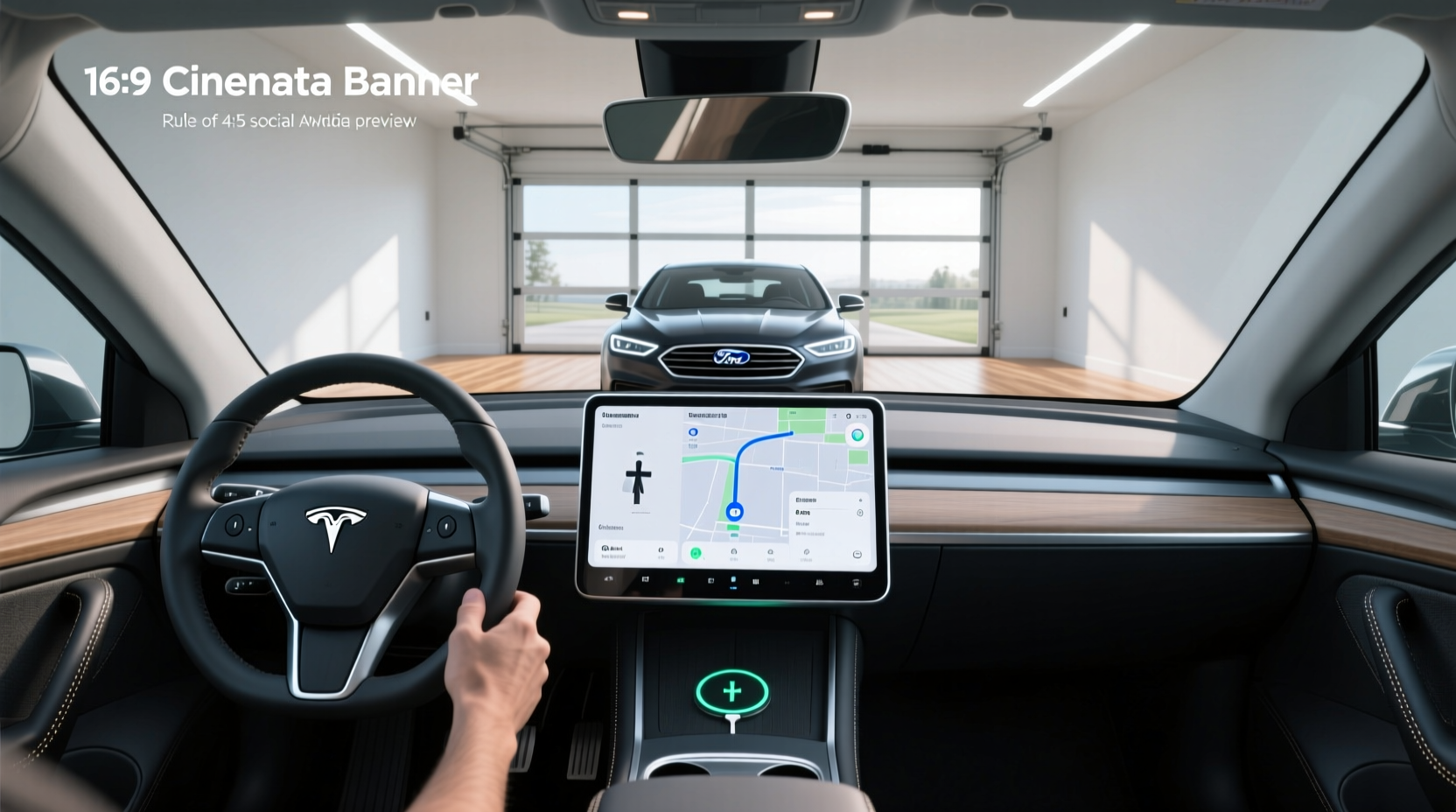
If you're wondering how to upgrade your Ford Fusion to a Tesla-style screen, you're not alone. Many 2013–2020 Ford Fusion owners are replacing their outdated SYNC 2 or SYNC 3 infotainment systems with modern, vertically oriented touchscreens that mimic the sleek interface of Tesla vehicles. These aftermarket upgrades offer larger displays—typically 13.3" to 13.6"—along with faster processors, wireless Apple CarPlay, Android Auto, built-in GPS, and even gaming capabilities ✅. While the installation is generally plug-and-play with proper harness adapters, understanding compatibility, wiring, and feature retention is critical to avoid issues like lost steering wheel controls or backup camera functionality ⚙️.
Why Are Ford Fusion Owners Upgrading to a Tesla-Style Screen?
The demand for a Ford Fusion Tesla screen stems from dissatisfaction with the original factory system. The SYNC 2 and early SYNC 3 units, especially in models from 2013 to 2018, suffer from slow response times, low-resolution displays (typically 4" to 8"), and limited connectivity options. As smartphone integration became standard, these systems quickly felt outdated.
Owners seek a more modern driving experience—one that mirrors the minimalist, high-tech feel of electric vehicles like the Tesla Model 3 or Model Y. A vertical touchscreen not only improves aesthetics but also enhances usability. With larger icons, smoother navigation, and app support, it transforms the cabin’s tech environment 🌐.
Additionally, newer Android-based head units allow access to apps like YouTube, Netflix (when parked), and games—features absent in factory systems. This shift reflects broader consumer expectations: seamless digital integration, over-the-air updates, and responsive interfaces—all hallmarks of Tesla’s design philosophy.
Compatibility: Which Ford Fusion Models Can Be Upgraded?
✅ Ford Fusion models from 2013 to 2020 are fully compatible with Tesla-style screen upgrades. However, there are subtle differences between model years that affect installation:
- 2013–2016 Fusions typically came with SYNC 2 or early SYNC 3 systems featuring smaller screens (4" or 8"). These are the most common candidates for full replacement due to their dated hardware.
- 2017–2020 models usually have an 8-inch SYNC 3 touchscreen as standard. While newer, many owners still opt for an upgrade to gain wireless CarPlay, better processing power, or the vertical layout.
It’s important to note that while the dashboard cutout and mounting brackets are largely consistent across this generation, wiring harnesses may vary slightly by trim level (SE, SEL, Titanium) and whether the car includes navigation or premium audio (e.g., Sony). Always verify your current radio model before purchasing an aftermarket unit 🔍.
Key Features of Aftermarket Tesla-Style Screens for Ford Fusion
When shopping for a Tesla-style screen for Ford Fusion 2013–2020, several technical specifications determine performance and user satisfaction:
| Feature | Factory SYNC 3 (8") | Aftermarket Tesla-Style (13.3"–13.6") |
|---|---|---|
| Screen Size & Orientation | 8", horizontal | 13.3"–13.6", vertical |
| Operating System | Proprietary Ford OS | Android 10–15 |
| Apple CarPlay | Wired only (on most trims) | Wireless standard |
| Android Auto | Wired only | Wireless standard |
| Processor | Dual-core, ~1.5 GHz | Octa-core, up to 2.0 GHz (Qualcomm Snapdragon) |
| RAM / Storage | 1–2 GB / 8–16 GB | 6–8 GB / 64–128 GB |
| Connectivity | Bluetooth, USB, AUX | Wi-Fi, 4G LTE, Bluetooth 5.0, Dual USB |
| Steering Wheel Control Retention | Yes | Yes (with CAN bus decoder) |
| Backup Camera Support | Yes (if equipped) | Yes (requires adapter) |
| Over-the-Air Updates | No | Limited (depends on brand) |
These upgrades go beyond aesthetics—they deliver tangible improvements in responsiveness, multitasking, and connectivity. For example, having wireless Apple CarPlay eliminates the need to plug in your iPhone every time you enter the vehicle, reducing cable wear and improving convenience ⚡.
Installation Process: Can You Do It Yourself?
🔧 Installing a Tesla-style screen in a Ford Fusion is feasible for DIYers with basic tools and moderate technical skill. Most kits include:
- Dash removal tools (plastic pry bars)
- Radio removal keys (for releasing the factory unit)
- Wiring harness adapter (to match OEM connectors)
- Antenna adapter (to retain FM/AM reception)
- GPS antenna (for navigation accuracy)
- Microphone extension (for hands-free calling)
- CAN bus decoder (to maintain steering wheel controls)
The process typically takes 1–2 hours and follows these steps:
- Disconnect the battery negative terminal to prevent electrical shorts.
- Remove the center console trim around the climate controls and radio using plastic tools to avoid scratches.
- Extract the factory radio using radio removal keys inserted into the side slots.
- Unplug all connectors including power, antenna, amplifier (if present), and data cables.
- Install the new harness adapter and connect it to the vehicle’s harness.
- Mount the new screen using a custom dash kit designed for vertical orientation.
- Reconnect all components, ensuring the backup camera, microphone, and steering wheel controls are properly linked.
- Reassemble the trim and reconnect the battery.
⏱️ Some units boot directly into Android Auto or CarPlay, while others require initial setup (Wi-Fi connection, account login, etc.). Always test all functions before final reassembly.
Common Challenges and How to Avoid Them
Despite being marketed as “plug-and-play,” some users report issues after installing a Ford Fusion Tesla screen. Awareness of these pitfalls can save time and money:
❌ Lost Steering Wheel Controls
Solution: Ensure the kit includes a CAN bus interface module. This device translates signals from the factory stalks to the new Android head unit. Without it, volume, track skip, and voice command buttons won’t work.
❌ Backup Camera Not Displaying
Solution: Verify that the installer connects the reverse trigger wire (usually yellow/red) from the vehicle harness to the correct input on the new unit. Some systems require enabling rear camera input in settings.
❌ Poor AM/FM Reception
Solution: Use an FM/AM antenna adapter to convert the factory coaxial plug to the new unit’s connector type. Also, ensure the antenna booster (if included) is powered correctly.
❌ Touchscreen Calibration Issues
Solution: Recalibrate the screen through the Android settings menu. If unresponsive areas persist, check for firmware updates or contact the supplier.
❌ Overheating or Crashing
Solution: Units with lower-quality cooling systems may throttle under heavy use. Choose brands with aluminum housings or active heat dissipation. Avoid leaving the screen on when parked in direct sunlight.
Cost Breakdown: What Should You Expect to Pay?
Pricing for a Ford Fusion Tesla-style screen varies significantly based on screen size, processor, RAM, and brand reputation:
- Budget Options ($120–$250): 9"–10.1" screens, Android 10–12, 4GB RAM, wired CarPlay. Often lack robust customer support.
- Mid-Range ($400–$650): 13.3"–13.6" IPS displays, Android 13–14, 6–8GB RAM, wireless CarPlay, Snapdragon chips. Best value for most users.
- Premium ($900–$1,500): Fully integrated units from specialized vendors, higher build quality, extended warranties, professional installation options.
🛒 Note: Installation costs $150–$300 if done professionally. Factor in additional accessories like HD radio adapters or external GPS antennas if needed.
Will It Void Your Warranty or Affect Vehicle Safety?
Installing an aftermarket screen does not automatically void your vehicle’s warranty, thanks to the Magnuson-Moss Warranty Act in the U.S. However, if the installation causes damage (e.g., cutting wires improperly), the dealership may deny coverage for related repairs.
🚗 From a safety standpoint, large vertical screens can obstruct the view of instrument clusters if poorly positioned. Always ensure the top edge of the screen doesn’t extend above the dashboard plane. Additionally, avoid using video apps while driving—many units disable them automatically when the vehicle is in motion.
Alternatives to Full Replacement
If a full head unit swap feels too invasive, consider these alternatives:
- SYNC 3 Software Update: Ford released updates to improve CarPlay and Android Auto performance. Check your current version via Settings > System > About.
- Add-on Wireless CarPlay Module: Devices like the Carlinkit 5.0 can add wireless functionality to existing SYNC 3 systems without replacing the screen.
- Tablet Mount Solution: Secure a tablet to the dash with a magnetic mount and use it for navigation and media. Less elegant but highly customizable.
User Feedback and Long-Term Reliability
Based on forums like Reddit’s r/fordfusion and owner reviews, satisfaction with Tesla-style upgrades is generally high—especially regarding improved responsiveness and CarPlay reliability. However, longevity varies by manufacturer:
- Units from well-known suppliers with metal casings and efficient cooling tend to last 3+ years.
- Cheaper models may degrade within 12–18 months due to overheating or software bloat.
- Some users report intermittent Bluetooth disconnections or GPS drift over time.
👥 Pro tip: Look for units with dedicated GPS chips (not reliant on phone hotspot) and independent Wi-Fi modules for best long-term performance.
Future-Proofing Your Investment
As automakers move toward over-the-air updates and deeper ecosystem integration, consider these factors when choosing a unit:
- Software Update Policy: Does the vendor provide periodic Android security patches?
- App Ecosystem: Can you install Google Play Store and third-party apps securely?
- Integration with Smart Home Devices: Some advanced units support Alexa or Google Assistant voice commands.
While no aftermarket unit matches Tesla’s native integration, choosing one with active developer support increases its usable lifespan.
Conclusion: Is a Tesla-Style Screen Worth It for Your Ford Fusion?
For most 2013–2020 Ford Fusion owners, upgrading to a Tesla-style vertical touchscreen is a worthwhile enhancement—provided you select a reliable unit and install it correctly. The benefits in usability, connectivity, and modernity far outweigh the cost for many drivers. Just be sure to research compatibility, retain factory features like steering wheel controls, and avoid overly cheap options that may fail prematurely.
This upgrade isn’t just about looks—it’s about bringing a decade-old sedan into the current decade of automotive technology. With careful planning, your Ford Fusion can offer a driving experience that feels fresh, intuitive, and surprisingly futuristic.
Frequently Asked Questions
- Can I install a Tesla-style screen in my 2016 Ford Fusion myself?
- Yes, most installations are DIY-friendly with basic tools. Follow step-by-step guides and ensure all adapters (CAN bus, antenna) are included.
- Does a Tesla-style screen work with Android Auto in a Ford Fusion?
- Yes, nearly all modern aftermarket units support both wireless Apple CarPlay and wireless Android Auto out of the box.
- Will I lose my backup camera after installing a new screen?
- Not if wired correctly. Connect the reverse trigger wire and configure the input in settings to retain camera functionality.
- Are there any risks to installing an aftermarket head unit?
- Potential risks include damaged trim, electrical shorts, or losing factory features. Proper preparation minimizes these.
- Do Tesla-style screens for Ford Fusion support GPS navigation?
- Yes, they come with built-in GPS modules and preloaded maps or support Google Maps via Wi-Fi or cellular connection.




 浙公网安备
33010002000092号
 浙B2-20120091-4