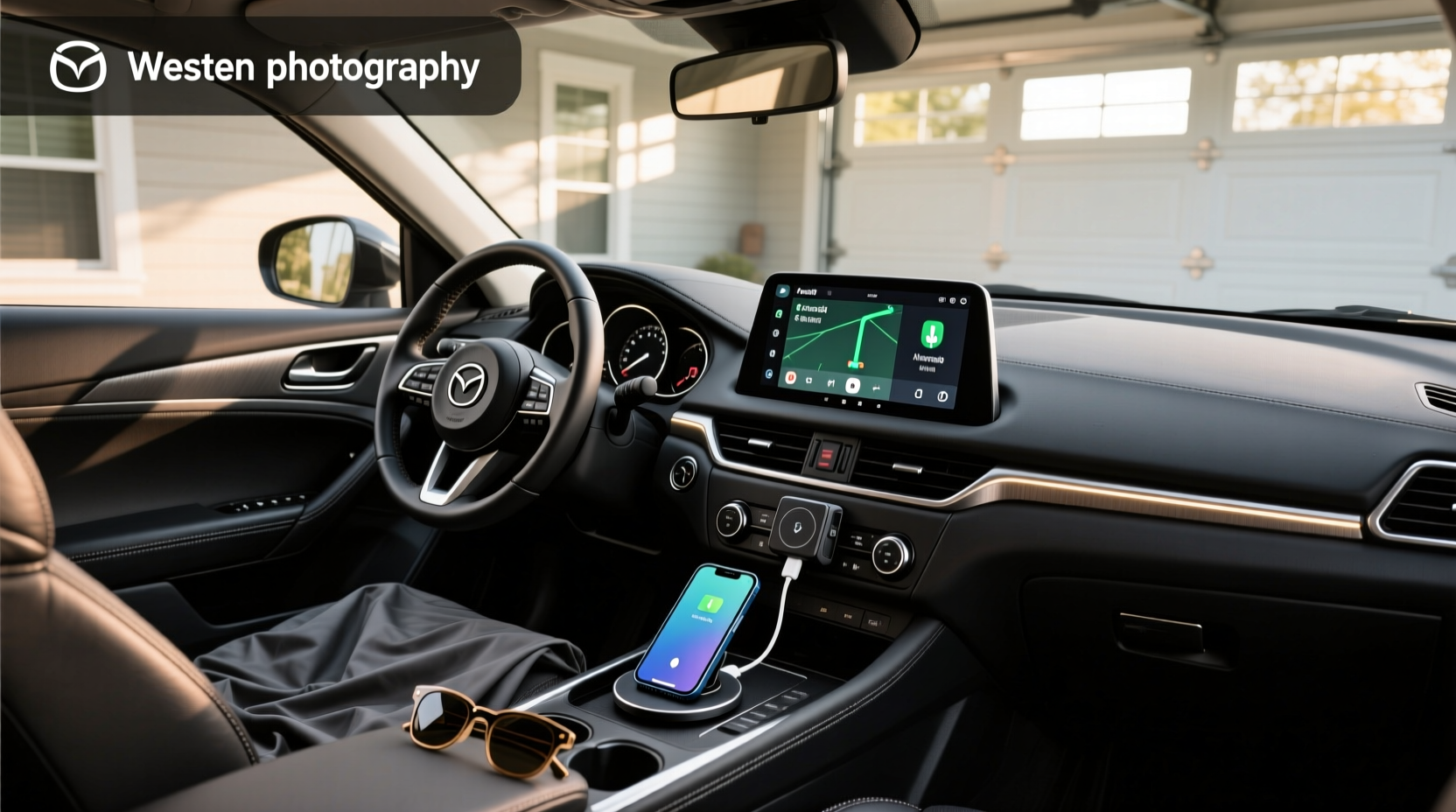
If you own a Mazda model from 2016–2020 and want to use Android Auto, you likely need a Mazda Android Auto upgrade kit. Factory-installed kits like the Mazda CX-5 Smartphone Screen Mirroring Kit (part number 00008FZ34) enable full Android Auto and Apple CarPlay support on compatible MZD Connect systems 🛠️. This guide walks through everything you need to know: which models qualify, what the upgrade includes, how to install it yourself or through a dealer, and how to troubleshoot connectivity issues after installation. Whether you're upgrading a 2017 CX-5 or a 2019 Mazda3, this comprehensive walkthrough covers all key considerations for adding modern smartphone integration to your Mazda.
Which Mazda Models Need an Android Auto Upgrade Kit?
Not all Mazdas come with Android Auto out of the box. While 2020 and newer Mazda models (including the CX-30, CX-50, CX-5, CX-90) include native support for Android Auto and Apple CarPlay, earlier models require hardware upgrades to gain these features ✅.
The following Mazda models typically require an upgrade kit to enable Android Auto:
- 📍 Mazda CX-5 (2017–2019)
- 📍 Mazda3 (2017–2018)
- 📍 Mazda6 (2017–2019)
- 📍 CX-3 (2016–2019)
- 📍 MX-5 Miata (2016–2018)
These vehicles were originally equipped with the first-generation MZD Connect infotainment system, which lacked the necessary software and processing power to support smartphone projection technologies like Android Auto. However, Mazda released a retrofit solution that allows owners to add this functionality without replacing the entire head unit.
What’s Included in the Official Mazda Android Auto Upgrade Kit?
The genuine Mazda upgrade is officially called the Smartphone Screen Mirroring Kit (Part # 00008FZ34), available through authorized dealers and parts retailers <🛒>. This is not just a software patch—it's a physical hardware module that connects to your car’s existing infotainment system.
📦 Key components included:
- 🔧 Control module (interface processor)
- 🔌 Wiring harness adapter
- 📱 USB extension cable (for connecting inside console)
- 📘 Installation instructions
This kit enables both Android Auto and Apple CarPlay via wired connection. It integrates seamlessly with the factory display and commander knob interface, preserving the OEM look and feel. The MSRP is around $223.95, though prices may vary depending on dealer markup and availability 1.
How Does the Upgrade Work? Understanding the Technology Behind It
The reason Android Auto isn’t supported natively in pre-2020 Mazdas comes down to two factors: hardware limitations and software architecture. Unlike later models, early MZD Connect systems didn’t have sufficient onboard memory or CPU speed to handle real-time screen mirroring and voice command processing.
The upgrade kit acts as an intermediary processor. When you plug in your Android phone:
- Your device sends video and audio signals to the upgrade module
- The module processes the Android Auto interface
- It then feeds the rendered output back into the factory touchscreen
- Inputs from the commander knob or steering wheel buttons are relayed through the module
This setup preserves the original user experience while adding modern compatibility. Importantly, the upgrade does not replace the factory radio—it enhances it.
Can You Install the Mazda Android Auto Kit Yourself?
Yes, many owners successfully perform a DIY installation of the Mazda Android Auto upgrade kit ⚙️. However, it requires moderate technical skill and familiarity with vehicle electronics.
🛠️ Tools commonly needed:
- Trim removal tools
- Screwdrivers (Phillips and Torx)
- Zip ties (for securing wiring)
- Flashlight or work light
📌 Step-by-step overview:
- Park the vehicle and disconnect the negative battery terminal for safety.
- Remove the center console trim panels to access the infotainment unit.
- Slide out the MZD Connect head unit using release tabs.
- Connect the upgrade module to the main harness behind the head unit.
- Route the USB extension cable to your preferred port location (usually armrest compartment).
- Secure the control module in an open space near the dashboard.
- Reinstall the head unit and reattach trim panels.
- Reconnect the battery and power on the system.
- Follow on-screen prompts to initialize Android Auto and CarPlay.
⏱️ Time required: ~1–2 hours for experienced users; up to 3+ hours for beginners.
⚠️ Important: After installation, you must update the MZD Connect firmware via a USB drive to ensure full compatibility. Mazda provides firmware updates on their official support site.
Dealer vs. DIY Installation: What’s the Difference?
You can choose between professional installation at a Mazda dealership or doing it yourself. Here’s a comparison:
| Factor | DIY Installation | Dealership Service |
|---|---|---|
| Cost | $224 (kit only) | $400–$600 (parts + labor) |
| Time | 1–3 hours | Same-day appointment |
| Warranty | Limited to part warranty | Full labor coverage |
| Risk of Damage | Moderate (if inexperienced) | Very low |
| Firmware Setup | User responsibility | Handled by technician |
👥 Many forums report high satisfaction with DIY results, especially when following detailed YouTube tutorials. However, if you’re uncomfortable working with electrical systems or lack time, paying for dealer service ensures proper calibration and avoids accidental damage to expensive interior panels.
Aftermarket Alternatives to the Factory Upgrade Kit
If the official Mazda kit is unavailable or too costly, several third-party solutions exist 🔗. These include:
- ⊳ Ubitab Android Auto Module (~$80–$120)
- ⊳ AAPOD Wireless Adapter (~$130)
- ⊳ Joying or Pioneer double-DIN replacements
While these options offer cost savings, they come with trade-offs:
- ❗ May void factory warranty or affect resale value
- ❗ Integration with commander knob may be limited
- ❗ Potential software bugs or lag
- ❗ Aesthetic mismatch with OEM dashboard design
The factory kit remains the most reliable option for maintaining stock appearance and seamless functionality.
How to Use Android Auto After Installation
Once the upgrade is complete, using Android Auto follows standard procedures ⚡:
✅ Steps to launch:
- Ensure your Android phone runs Android 6.0 or higher (recommended: Android 9.0+)
- Install the Android Auto app from Google Play Store (even if it appears pre-installed)
- Connect your phone to the upgraded USB port (typically inside the center armrest)
- Grant permissions when prompted on both phone and car screen
- Use the home button or rotate the commander knob to access apps
Supported apps include Google Maps, Spotify, WhatsApp, Waze, and more. Voice commands via “Hey Google” are fully functional once linked.
Does the Upgrade Support Wireless Android Auto?
No—the factory Mazda Android Auto upgrade kit only supports wired connections ❌. Even 2024+ Mazda models often require an initial USB connection before enabling wireless pairing.
However, some users combine the factory kit with a wireless Android Auto adapter (like AAPOD or CarlinKit) for cord-free operation. This involves:
- Plugging the wireless dongle into the upgraded USB port
- Pairing the phone via Bluetooth and Wi-Fi hotspot created by the dongle
- Launching Android Auto automatically upon entering the car
⚠️ Note: Adding a wireless adapter introduces another point of failure and may cause overheating or disconnections over time. Reliability varies based on phone model and environmental conditions.
Troubleshooting Common Issues After Upgrading
Even with correct installation, some users report problems 🔍. Here are frequent issues and fixes:
No Signal or Black Screen on Startup
🔸 Cause: Improper harness connection or missing firmware update
✅ Fix: Recheck all connectors behind the head unit. Download the latest MZD Connect firmware from Mazda’s support portal and install via USB.
Phone Detected but Android Auto Won’t Launch
🔸 Cause: App permission denied or corrupted cache
✅ Fix: On your phone, go to Settings > Apps > Android Auto > Clear Cache & Data. Re-enable permissions and reconnect.
Intermittent Connection or Freezing
🔸 Cause: Low-quality USB cable or power fluctuation
✅ Fix: Use a certified USB-A to USB-C/Lightning cable. Avoid charging-only cables. Test with different phones if possible.
Commander Knob Not Responding in Android Auto
🔸 Cause: Incompatible firmware version
✅ Fix: Ensure your MZD Connect system is updated to version 70.00 or higher. Some early kits required a software patch for full knob support.
Regional Differences and Availability
Availability of the Mazda Android Auto upgrade kit varies by market 🌍:
- 🇺🇸 United States: Widely available through dealerships and online parts portals
- 🇨🇦 Canada: Same kit offered under slightly different part numbers
- 🇬🇧 UK/EU: Limited availability; some importers sell modified versions
- 🇦🇺 Australia: Officially discontinued; rely on third-party suppliers
If you're outside North America, check with local Mazda dealers or specialized automotive tech shops. Some European owners have reported success sourcing kits from U.S.-based online sellers.
Is the Upgrade Worth It in 2025?
For owners of older Mazdas who rely on navigation and music streaming, the answer is generally yes ✨. The ability to use Google Maps with live traffic, receive turn-by-turn directions on the center screen, and control Spotify hands-free significantly improves daily driving convenience.
However, consider the following before proceeding:
- 📉 Resale impact: Modified infotainment systems may concern some buyers
- 📈 Future-proofing: Newer cars offer wireless Android Auto and over-the-air updates
- 🛒 Cost-benefit: At ~$225+, weigh against potential trade-in value loss
If you plan to keep your Mazda beyond 2026, the upgrade makes sense. If selling soon, weigh whether the investment will pay off.
Frequently Asked Questions (FAQs)
- Can I add Android Auto to my 2018 Mazda CX-5?
- Yes, using the official Mazda Smartphone Screen Mirroring Kit (Part # 00008FZ34). This factory-approved upgrade enables both Android Auto and Apple CarPlay on 2017–2019 CX-5 models with MZD Connect.
- Does the Mazda Android Auto upgrade work with any phone?
- It supports most Android devices running Android 6.0 or later. For best performance, use phones with Android 9.0+ and ensure the Android Auto app is installed and updated.
- Do I need to visit a dealer to activate the kit after installation?
- No, activation is done automatically when you connect your phone. However, you must manually update the MZD Connect firmware via USB to ensure full functionality.
- Why won’t my phone connect to Android Auto after the upgrade?
- Common causes include outdated firmware, incorrect USB port usage, or disabled permissions. Verify you're using the correct USB port (usually inside the armrest), update your car’s software, and reset app permissions on your phone.
- Can I make the upgraded system support wireless Android Auto?
- The factory kit doesn’t support wireless mode, but you can add a third-party wireless adapter (e.g., AAPOD, CarlinKit) that plugs into the USB port and creates a Wi-Fi connection for wireless projection.




 浙公网安备
33010002000092号
 浙B2-20120091-4