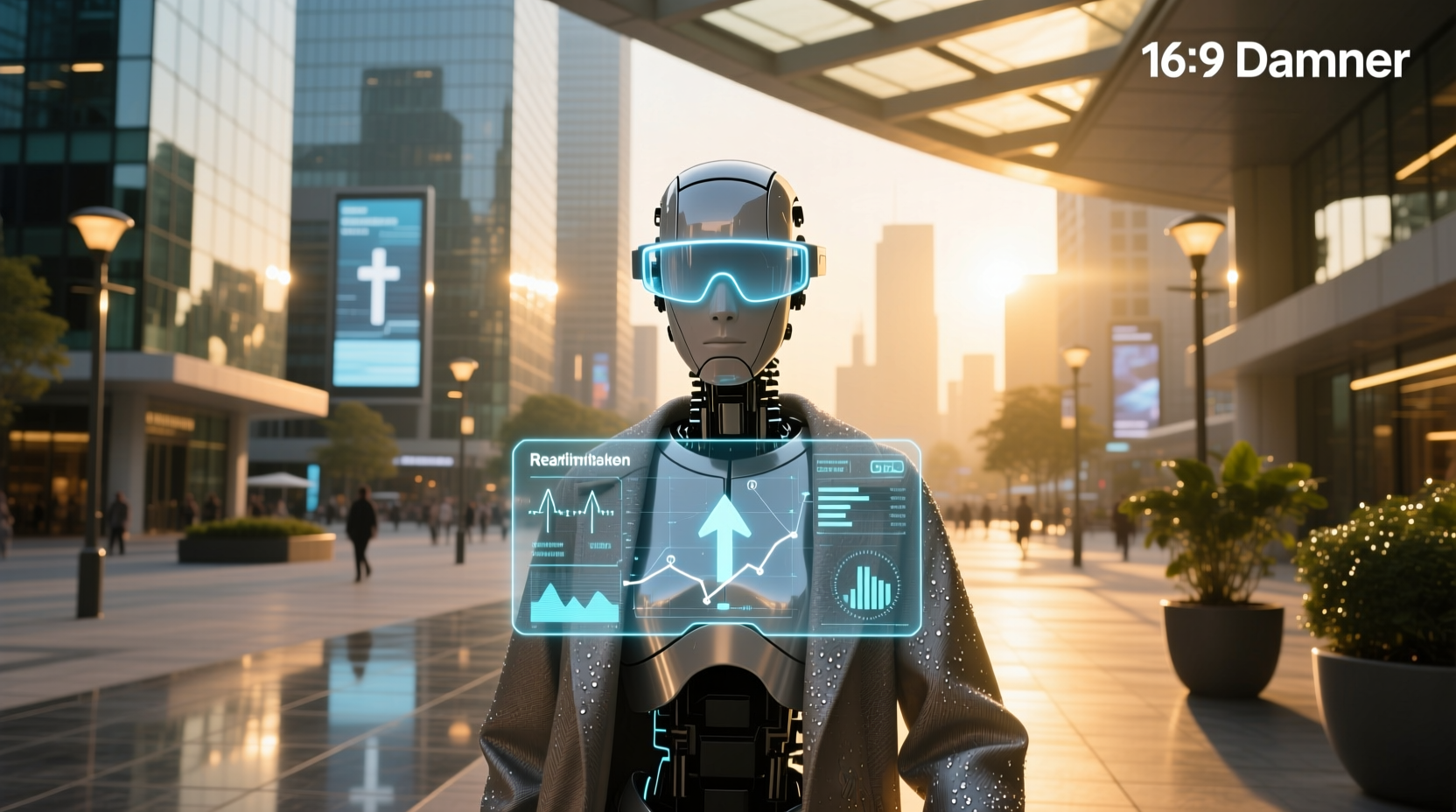
Adding an Android HUD display to your car can transform how you interact with navigation, speed data, and smartphone features while driving. These systems project essential information—like GPS directions, vehicle speed, and incoming calls—onto the windshield or a transparent screen directly in your line of sight, reducing distractions and improving safety. Whether you're using a plug-and-play device, integrating with Android Auto, or building a DIY solution, understanding how android hud display technology works is key to choosing the right setup for your vehicle.
What Is an Android HUD Display?
A heads-up display (HUD) in automotive terms refers to any system that projects driving-related information onto a transparent surface—typically the lower portion of the windshield or a pop-up screen—so drivers don’t have to look down at the dashboard. When combined with Android devices, these HUDs can leverage apps like Google Maps, Waze, or dedicated HUD software to deliver real-time data tailored to your journey ✅.
There are three primary types of android hud display setups:
- Factory-installed HUDs – Built into higher-end vehicles, often supporting Android Auto integration 🏭
- Aftermarket HUD units – Standalone devices that connect via OBD2 port or Bluetooth, compatible with Android phones 🔧
- Smartphone-based HUDs – Using a phone mount and reflective film or glass to project app output as a DIY-style HUD 📱
Why Drivers Are Turning to Android-Compatible HUDs
The rise in distracted driving incidents has made hands-free access to critical information more important than ever. According to the National Highway Traffic Safety Administration (NHTSA), distracted driving claimed 3,522 lives in the United States in 2021 alone 1. By keeping eyes forward and minimizing glances away from the road, HUDs help reduce cognitive load and reaction time during emergencies.
For Android users, the ability to mirror navigation, call alerts, and message notifications through a head-up interface adds significant value. Unlike built-in infotainment screens, which require downward eye movement, a well-positioned android hud display keeps data within natural vision range—especially helpful in urban environments or high-speed highways.
Key Features to Look For in an Android HUD System
Not all HUDs offer the same functionality. If you’re considering adding one to your vehicle, evaluate these core capabilities:
1. Compatibility with Android Auto ⚙️
The most seamless experience comes from HUDs that support full Android Auto integration. This allows voice commands via Google Assistant, turn-by-turn navigation from Google Maps, and media control—all rendered clearly on the display. Some aftermarket HUDs act as secondary screens for Android Auto, receiving input wirelessly after initial pairing.
2. Connectivity Options: Bluetooth, USB, or Wireless 🌐
Modern HUD units typically connect via:
- OBD2 + Bluetooth: Pulls vehicle data (speed, RPM, engine temp) and pairs with your phone for app data
- USB Tethering: Required for wired Android Auto support
- Wi-Fi Direct: Enables wireless Android Auto in supported models
3. Projection Quality and Adjustability ✨
Look for adjustable brightness, height, and focus settings. A good HUD should remain visible under bright sunlight and not cause glare at night. Monochrome green or amber displays tend to be less distracting than full-color ones. Transparency levels and viewing angles also impact usability—test if possible before committing.
4. GPS Accuracy and Speed Monitoring 📍
Many standalone HUDs include internal GPS modules to show real-time speed independently of your phone. This is useful when phone signal is weak or battery saving mode limits background location access. Units with dual-source speed verification (OBD2 + GPS) provide the highest accuracy.
5. Voice and Gesture Control Support 🗣️
Advanced systems like the NEOTOKYO HUD add gesture recognition and voice activation, allowing drivers to dismiss alerts or change routes without touching any device. While not standard across all models, this feature enhances safety further.
Top Use Cases for Android HUD Displays
Understanding where and how people benefit most from android hud display setups helps clarify whether it’s worth investing in one.
Urban Commuting and Navigation
In cities with complex intersections and frequent rerouting, having turn prompts appear directly ahead minimizes missed exits. HUDs integrated with Google Maps or Waze ensure you see upcoming lane changes and traffic alerts without checking your phone.
Long-Distance Driving
On highways, maintaining consistent speed is crucial. A HUD displaying current speed, posted limit (via GPS lookup), and cruise status reduces mental strain over long stretches. Some systems even warn of approaching speed cameras or school zones.
Fleet and Commercial Vehicles
Delivery drivers, rideshare operators, and service technicians often rely on constant navigation updates. An Android-compatible HUD improves efficiency and compliance with company policies around mobile device usage while driving.
Dashcam Integration
Certain advanced HUDs overlay forward collision warnings or lane departure alerts based on dashcam analysis. When paired with AI-powered dashcams running Android-based firmware, they function similarly to OEM advanced driver assistance systems (ADAS).
DIY Android HUD: Is It Worth Building?
Some tech-savvy users opt for a homemade android hud display using a smartphone, a transparent acrylic sheet, and free apps like “HUD Speedometer” or “Hudly” from Google Play 2. The concept is simple: mount your phone below the dashboard so its screen reflects onto the windshield or a small angled panel.
Pros of DIY solutions:
- Low cost (under $20 in materials)
- No installation beyond mounting
- Full access to Android apps
Cons:
- Poor visibility in daylight
- Limited adjustability
- Can create ghosting or double images
- No integration with vehicle data unless OBD2 adapter used
If you're experimenting, start with a basic reflective holder and test different apps. However, for daily reliability, a purpose-built unit usually performs better.
Installation Process: What to Expect
Setting up an aftermarket android hud display varies by model but generally follows these steps:
- Power Connection: Most units plug into the 12V cigarette lighter socket 🚚. Higher-end models may require hardwiring to the fuse box for cleaner aesthetics.
- OBD2 Link (if applicable): Plug the included OBD2 cable into your car’s diagnostic port (usually under the steering column) to receive real-time vehicle metrics.
- Phone Pairing: Enable Bluetooth on your Android device and follow the HUD’s instructions to pair. For Android Auto compatibility, install the appropriate app and grant necessary permissions.
- Positioning and Calibration: Place the HUD unit on the dashboard or attach it magnetically. Adjust the angle so the projection appears centered in your field of view without blocking scenery.
- App Configuration: Launch your preferred navigation or HUD app and verify data sync (e.g., speed, route guidance).
Most installations take under 30 minutes ⏱️. Always check local laws regarding obstructions on windshields before permanent mounting.
Common Misconceptions About Android HUDs
Despite growing popularity, several myths persist about how these systems work:
Misconception 1: All HUDs Work Like Factory Systems
No. Factory HUDs are deeply integrated with the car’s CAN bus network and often support color graphics and ADAS alerts. Aftermarket versions may only show speed and basic nav cues unless explicitly designed otherwise.
Misconception 2: Any Smartphone App Can Turn My Car Into a HUD
While apps like HUD Speedometer can simulate a display, true effectiveness depends on reflection quality, ambient light, and screen orientation. Without proper hardware, results are inconsistent.
Misconception 3: HUDs Replace the Need for Dashcams or Infotainment Screens
They complement them but don’t replace functionality. A HUD shows summarized data; detailed video review or music library browsing still requires other interfaces.
Performance Comparison: Best Android HUD Options by Type
| Model Type | Connectivity | Android Auto Support | Vehicle Data Access | Avg Price Range |
|---|---|---|---|---|
| NEOTOKYO HUD | Bluetooth, OBD2 | Yes (wireless) | Speed, RPM, coolant | $180–$220 |
| Hudway Drive | Bluetooth, USB | Limited (app mirroring) | GPS speed only | $99–$129 |
| DIY Phone Setup | N/A | App-dependent | None (unless OBD2 dongle) | $10–$30 |
| Kia OEM HUD (with Android Auto) | Integrated | Yes (wired/wireless) | Full CAN bus access | Standard in trim |
This comparison highlights trade-offs between cost, integration depth, and ease of use. Factory systems offer the smoothest experience but come only with specific trims. Aftermarket units give flexibility but vary widely in software support.
Legal and Safety Considerations
Before installing any android hud display, consider regional regulations. In the U.S., Federal Motor Vehicle Safety Standard (FMVSS) No. 111 restricts what can obstruct the windshield. Generally, small HUD projections near the base are permitted, but large overlays covering more than a few inches may violate state laws.
Additionally, ensure the display doesn’t become a distraction itself. Avoid overly bright colors, flashing animations, or excessive data points. The goal is to enhance awareness—not overload it.
Troubleshooting Common Issues
Even well-designed HUDs can encounter problems. Here are frequent issues and fixes:
- Blurry or Faded Display: Clean the projector lens and adjust focus dial. Ensure no dirt or smudges are on the reflective surface.
- No Speed Reading: Verify GPS lock or OBD2 connection. Restart both the HUD and your phone.
- Android Auto Not Mirroring: Update the Android Auto app and check USB cable integrity. Try enabling developer options and USB debugging if needed.
- Overheating: Some units shut off in hot cars. Park in shade or install a thermal pad underneath.
Future Trends in Android-Based HUD Technology
As automakers move toward digital cockpits, we’re seeing increased convergence between factory HUDs and open platforms like Android Automotive OS. Google’s partnership with多家车企 means future vehicles will natively run Android apps, including enhanced HUD interfaces with contextual AI suggestions (e.g., reminding you to leave early due to traffic).
Augmented reality (AR) HUDs are also emerging, overlaying arrows directly onto the road view to guide turns. While currently limited to luxury brands like BMW and Mercedes-Benz, similar capabilities could reach affordable models within five years.
Final Recommendations: Who Should Buy an Android HUD?
An android hud display makes sense if you:
- Drive frequently in unfamiliar areas
- Want safer access to navigation without looking down
- Own a car without factory Android Auto or HUD support
- Prefer customizable, tech-enhanced driving experiences
It’s less beneficial if you rarely use navigation, drive short familiar routes, or are uncomfortable with setting up new electronics. Also, older Android phones (below Android 8.0) may struggle with performance when running HUD apps continuously.
Frequently Asked Questions (FAQs)
- Can I use my Android phone with a heads-up display?
- Yes, most modern HUDs support Android smartphones via Bluetooth or USB. You’ll need to enable permissions for location, notifications, and sometimes accessibility services for full functionality.
- Do HUD displays work at night?
- Yes, and many automatically dim brightness in low-light conditions. Look for models with ambient light sensors to prevent glare while maintaining readability.
- How accurate is the speed shown on an Android HUD?
- Accuracy depends on the source: GPS-only HUDs are typically within ±2 mph; those connected to OBD2 ports match your car’s instrument cluster precisely.
- Can I install a HUD myself?
- Most aftermarket HUDs are designed for self-installation using plug-and-play connections. No special tools are required, though hardwiring may need professional help.
- Are there free apps for Android HUD displays?
- Yes, apps like HUD Speedometer and Hudly on Google Play offer free versions with basic speed and compass functions. Premium upgrades add features like speed limit detection and custom themes.





 浙公网安备
33010002000092号
浙公网安备
33010002000092号 浙B2-20120091-4