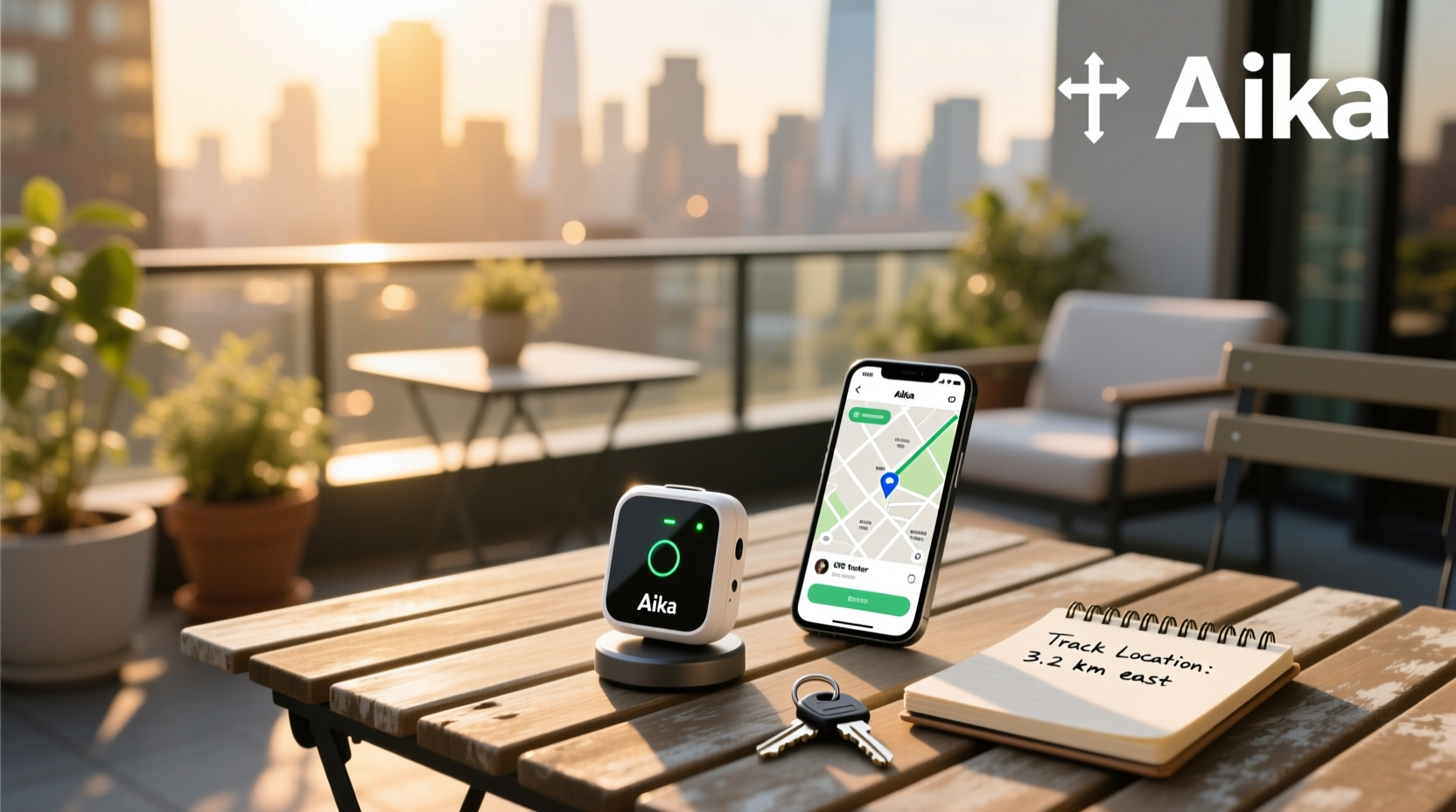
If you're searching for how to set up an Aika GPS tracker, you're not alone—thousands of users each month need clear, step-by-step guidance to get their devices online and tracking accurately. This comprehensive guide walks you through every phase of the Aika GPS tracker setup process, from unboxing and hardware installation to syncing with the AIKA GPS app on Android or iOS, configuring alerts, and resolving common connectivity problems. Whether you’re using it for fleet management, personal vehicle security, or monitoring valuable assets, proper setup is essential for reliable real-time location tracking ✅.
What Is the Aika GPS Tracker?
The Aika GPS tracker is a compact telematics device designed for real-time vehicle and asset monitoring 🌐. It uses GSM and GPS technology to transmit location data via mobile networks to a cloud-based platform accessible through a smartphone app or web portal. These trackers are commonly used in cars, motorcycles, scooters, and even for personal tracking (e.g., elderly family members or children). They support features like geofencing, overspeed alerts, vibration detection, and remote ignition cutoff ⚙️.
Available in both hardwired and OBD-II plug-and-play models, Aika GPS trackers are often sold through regional distributors or integrated into local fleet management systems. While they don’t come directly from a single global brand, many units share similar firmware and use the same AIKA GPS app for tracking and configuration 🔗.
Types of Aika GPS Trackers
Before diving into setup, it’s important to identify which type of Aika GPS tracker you have. The two most common variants are:
- OBD-II Plug-and-Play Trackers 🚘: Designed to plug directly into your vehicle’s On-Board Diagnostics (OBD-II) port, usually located under the dashboard. These require no wiring and automatically draw power from the car’s electrical system. Ideal for quick installations and personal use.
- Hardwired Trackers 🔧: Require permanent connection to the vehicle’s battery and possibly other circuits (like ACC line or ignition). More discreet and tamper-resistant, making them better suited for commercial fleets or high-theft-risk vehicles.
Some advanced models also include 4G LTE support, internal backup batteries, and motion sensors for enhanced functionality ✨.
What You’ll Need for Setup
To complete the Aika GPS tracker installation and activation, gather the following items:
- Aika GPS tracking device (OBD or hardwired)
- Smartphone (Android or iPhone) with internet access
- AIKA GPS app installed (available at aika168.com)
- Vehicle identification number (VIN) or device ID (often printed on the tracker)
- User account credentials (if provided by installer or supplier)
- Optional: SIM card with active data plan (if not pre-installed)
Note: Some Aika trackers come with embedded SIM cards; others may require you to insert a compatible nano-SIM with a working data plan 📶.
Step-by-Step Aika GPS Tracker Setup Process
1. Install the Physical Device
For OBD-II Models:
- Locate your vehicle’s OBD-II port—typically beneath the steering column.
- Plug the Aika GPS tracker firmly into the port until it clicks.
- Ensure the LED indicator lights up (usually green or blue), signaling power and signal acquisition.
- Start the engine to confirm the device remains powered during operation.
For Hardwired Models:
- Disconnect the vehicle battery’s negative terminal for safety ⚠️.
- Mount the tracker in a hidden but ventilated location (e.g., behind the dashboard).
- Connect the red wire to the positive (+) terminal of the battery.
- Connect the black wire to the negative (-) ground point.
- Optional: Connect the white or yellow wire to the ACC line for ignition detection.
- Reconnect the battery and test the device’s power status via LEDs.
2. Download and Install the AIKA GPS App
The AIKA GPS app is available for both Android and iOS platforms:
- Android Users: Search “AIKA GPS” on Google Play Store or visit aika168.com to download the APK file if not available locally.
- iOS Users: Search “AIKA GPS” in the App Store. If unavailable, check the official website for alternative instructions or region-specific apps.
Install the app and allow necessary permissions (location, notifications, background refresh).
3. Create an Account or Log In
Open the AIKA GPS app and choose one of the following options:
- Create New Account: Enter your email address, create a password, and verify your identity.
- Use Provided Credentials: Some dealers or installers provide pre-configured accounts. Use the login details given to you.
After logging in, you’ll be directed to the main dashboard showing any linked devices.
4. Add Your Device to the App
To link your physical tracker with your account:
- Navigate to “Add Device” or “Bind Device” in the app menu.
- Enter the Device ID (found on the tracker label or packaging).
- Input the verification code or password if required (commonly default as ‘000000’ or ‘123456’).
- Confirm binding. Wait 1–2 minutes for the system to register the device.
Once added, the device should appear in your device list with its current status (online/offline).
5. Verify Real-Time Tracking
Movement is required for accurate GPS lock. Drive the vehicle for 5–10 minutes or move the tracker outdoors if testing manually. Return to the app and check:
- Real-time location dot on the map 📍
- Last updated timestamp
- Satellite signal strength (should show 4+ satellites)
- Speed and direction updates
If no data appears after 15 minutes, proceed to troubleshooting.
Common Setup Issues and How to Fix Them
No Signal or Offline Status
This is the most frequent issue reported by new users ❗. Possible causes include:
- Poor GPS reception: Try moving the vehicle outside or away from tall buildings/tunnels.
- Weak cellular signal: Ensure the SIM card has network coverage. Check APN settings if using a custom SIM.
- Incorrect device binding: Double-check the Device ID and password.
- Power issue: For hardwired units, ensure constant voltage supply even when engine is off.
App Won’t Connect or Login Fails
If you can’t log in:
- Try resetting your password using the “Forgot Password” option.
- Ensure you’re using the correct server region (some versions use different domains like aika168.net or regional mirrors).
- Clear app cache or reinstall the app if stuck on loading screen.
Location Inaccurate or Jumps Around
Causes:
- Initial cold start—GPS needs time to acquire satellite signals.
- Interference from metal enclosures or magnetic mounts.
- Outdated app version—update to the latest release.
Configuring Alerts and Advanced Features
Once your Aika GPS tracker is online, configure key safety and monitoring features:
- Geofence Alerts 📌: Define virtual boundaries. Get notified when the vehicle enters or leaves a designated area.
- Overspeed Warnings ⚡: Set speed thresholds and receive alerts when exceeded.
- Vibration/Motion Detection 🔍: Enables anti-theft mode by alerting you to unauthorized movement.
- Low Battery Warning: Especially useful for trackers with internal batteries.
- Remote Ignition Cut-Off ⛔: Available on select models—allows disabling engine start remotely.
To enable these, go to the device settings section in the app and toggle the desired alerts. Customize notification preferences (push, SMS, email) as needed.
Understanding Subscription and Data Costs
One frequently asked question is: Do Aika GPS trackers require a monthly fee? The answer depends on usage:
- Hardware Cost: One-time purchase price (varies by model, typically $20–$50).
- Data Plan: Most trackers need a SIM card with an active data plan. Some include free service for 1–3 months; beyond that, expect $2–$5/month depending on region and provider.
- Platform Access: Many Aika systems offer free basic tracking via app. Premium features (historical reports, multi-user access) may require subscription.
Always clarify with your supplier whether ongoing fees apply before finalizing installation 🏷️.
Is the Aika GPS App Safe and Reliable?
User reviews across platforms like Softonic and CNET indicate generally positive experiences with the AIKA GPS app for real-time tracking and ease of use 1. However, reliability depends heavily on:
- Device quality and antenna design
- Network carrier performance
- Firmware stability
- Server uptime of the backend platform
Some users report intermittent disconnections or delayed updates, especially in rural areas or underground parking. Regular firmware updates (when available) can improve performance.
Regional Differences and Compatibility
Aika GPS trackers are distributed globally but often rebranded or configured for specific markets. Key considerations:
- Frequency Bands: Ensure the device supports your country’s 2G/3G/4G bands (e.g., EU vs. US carriers).
- Language Support: The AIKA app interface may default to English, Chinese, or local languages based on region.
- Local Servers: Some providers route data through regional servers for faster response times.
- Legal Compliance: In some countries, installing a tracker without consent may violate privacy laws—always follow local regulations.
Tips for Optimal Performance
To get the most out of your Aika GPS tracker:
- Perform a test drive after setup to validate tracking accuracy.
- Keep the app updated to benefit from bug fixes and new features.
- Check battery voltage regularly (for OBD models) to prevent drain.
- Use strong passwords and enable two-factor authentication if supported.
- Backup device IDs and account info in case of phone loss.
When Not to Use an Aika GPS Tracker
While versatile, these devices aren’t ideal for all scenarios:
- Long-term storage without maintenance: Internal batteries degrade over time.
- Extreme environments: Prolonged exposure to heat, moisture, or vibration can damage low-cost units.
- Critical safety applications: Not recommended as primary anti-theft systems for high-value vehicles without additional layers of protection.
- Privacy-sensitive situations: Never track individuals without explicit consent.
Conclusion
Setting up an Aika GPS tracker doesn't have to be complicated. By following this step-by-step guide—from physical installation to app configuration and troubleshooting—you can achieve reliable real-time tracking for your vehicle or asset. Remember to verify signal strength, double-check device binding details, and understand any associated data costs. With proper setup, the AIKA GPS system offers a cost-effective way to monitor location, improve safety, and gain peace of mind.
Frequently Asked Questions (FAQs)
How do I download the Aika GPS app?
You can download the AIKA GPS app from the Google Play Store for Android or the Apple App Store for iPhone. If unavailable, visit the official website aika168.com to download the APK or get region-specific links.
Can I tell if someone put a GPS tracker on my car?
Yes, you can inspect common mounting locations such as under the bumper, near the OBD-II port, or inside wheel wells. Unusual wires or small magnetic boxes may indicate a hidden tracker. Using an RF detector can help identify active transmitters.
Do all GPS trackers require a monthly fee?
No, not all—but most do require a data plan. While the hardware is a one-time cost, the SIM card inside the tracker typically needs an active data subscription ($2–$5/month) to transmit location information.
What should I do if my Aika GPS tracker is offline?
First, ensure the device has power and is in a location with good GPS and cellular reception. Restart the device, check the SIM card status, and confirm the account is active. Rebinding the device in the app may also resolve connectivity issues.
Where can I find the Aika GPS tracker manual?
The user manual is often included in the packaging or available for download on distributor websites like aika168.com. Search for "AIKA GPS Tracker Manual PDF" along with your model number for specific guides.





 浙公网安备
33010002000092号
浙公网安备
33010002000092号 浙B2-20120091-4