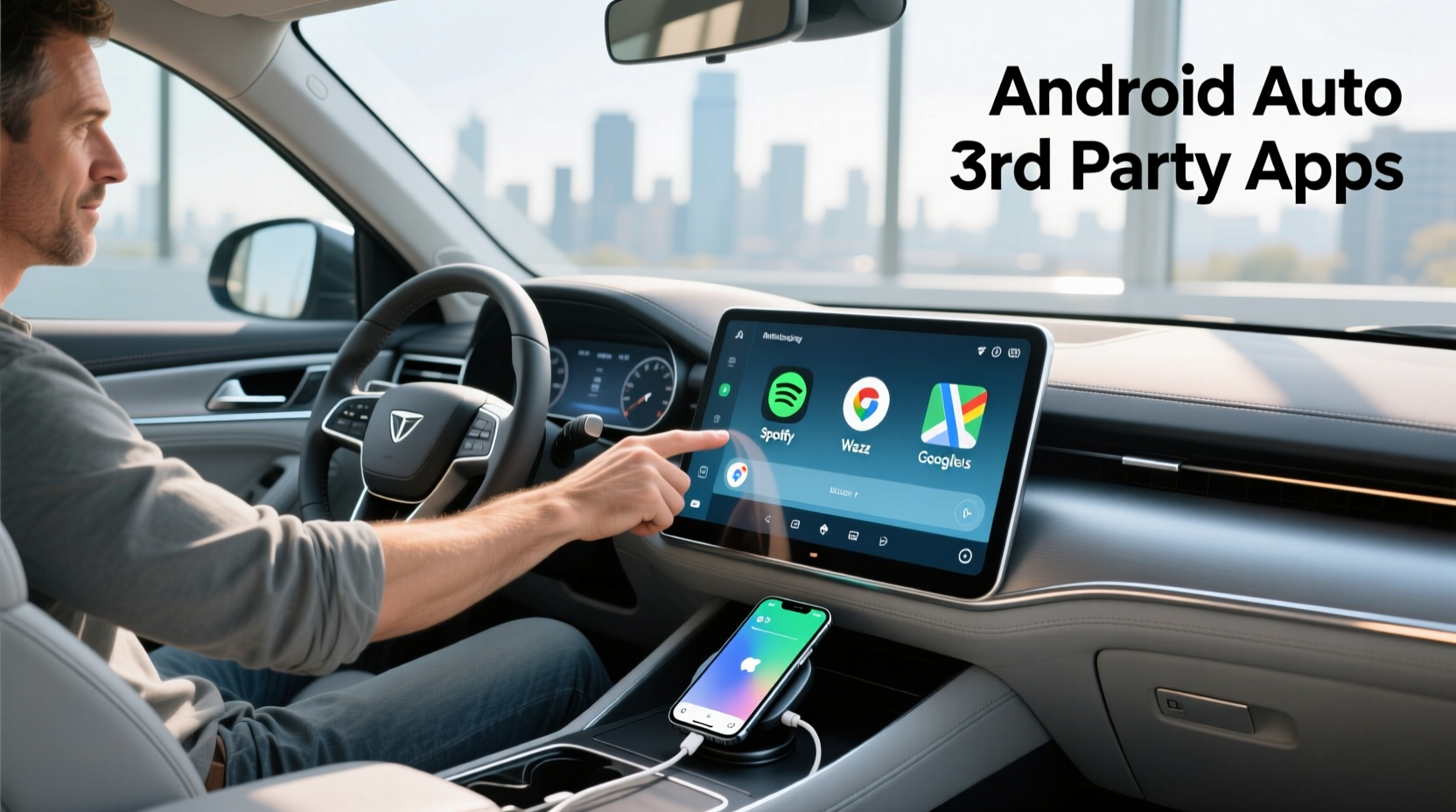
For drivers looking to maximize their in-car experience, one common question arises: can you use third-party apps on Android Auto? The short answer is yes—but with important limitations. While Google tightly controls the official Android Auto interface to prioritize safety and usability, certain third-party applications can integrate directly or work through workarounds like AutoApps or modified launchers. Understanding how these apps function, which ones are compatible, and what risks or benefits they bring is essential for anyone wanting more flexibility from their vehicle’s infotainment system.
What Is Android Auto and How Does It Work?
Android Auto is a smartphone-mirroring platform developed by Google that brings select mobile app interfaces to your car’s built-in display. Instead of interacting with your phone directly while driving, Android Auto provides a simplified, voice-enabled, and touch-optimized layout designed for safer use behind the wheel 1.
The system works by connecting your Android device (running Android 8.0 or higher) via USB or wireless connection to a compatible vehicle or aftermarket head unit. Once connected, only approved apps appear on the car screen—primarily navigation, communication, music, and audiobook services.
Officially, Google maintains strict certification standards for which apps can appear on Android Auto. These include well-known names like:
- Google Maps and Waze (navigation)
- Spotify, Pandora, and YouTube Music (audio streaming)
- WhatsApp, Telegram, and Google Messages (messaging)
- Audible and Pocket Casts (audiobooks)
This curated approach ensures performance consistency and reduces driver distraction. However, it also limits access to many popular or region-specific apps users might expect to see.
Are Third-Party Apps Allowed on Android Auto?
Direct integration of arbitrary third-party apps into the standard Android Auto interface is not permitted under Google's current policies. Developers must apply for approval and meet specific design, safety, and performance requirements before their app appears as an option within Android Auto 2.
That said, there are legitimate ways to extend functionality using third-party tools and alternative setups:
✅ Officially Supported Third-Party Integrations
Some non-Google apps have been officially approved and appear natively when connected. Examples include:
- Waze: Real-time traffic navigation with community alerts
- Spotify: Full control over playlists and podcasts
- TuneIn Radio: Live radio and sports broadcasts
- Slacker Radio: Customizable internet radio stations
These apps undergo rigorous testing and follow Android Auto’s UI guidelines. They operate seamlessly without requiring modifications to the phone or system.
🛠️ Unofficial Methods: Using AutoApps and Launchers
For advanced users, several third-party solutions allow broader app access through indirect means:
- AutoMate / AutoNotification / Tasker: Automation apps that trigger actions based on Android Auto connection status.
- OpenAuto / AAPlay: Open-source platforms allowing deeper customization of the Android Auto environment.
- Limited custom launchers: Some developers create dashboards that launch just before Android Auto starts, enabling quick access to other apps.
⚠️ Important: These methods often require enabling developer options, disabling security features, or sideloading APKs—which may void warranties or compromise device security.
How to Check If Your App Works with Android Auto
If you're wondering whether a specific third-party app supports Android Auto, follow these steps:
- Open the Google Play Store on your phone.
- Search for the app (e.g., "Spotify").
- Scroll down to the 'Additional Information' section.
- Look for “Available on Android Auto” listed under features.
You can also visit the official list of compatible apps maintained by Google (updated periodically).
If the app isn’t listed, it won’t show up in the standard Android Auto interface—even if it has similar functionality to approved apps.
Why Doesn’t Every App Work on Android Auto?
There are several reasons why many third-party apps aren't available on Android Auto:
- Safety restrictions: Complex interfaces or frequent pop-ups increase distraction risk.
- Design compliance: Apps must adhere to strict visual and interaction guidelines.
- Maintenance burden: Developers must update both main and Auto versions separately.
- Market demand: Smaller apps may not justify the development cost.
Even major services like TikTok, Instagram, or Facebook don’t support Android Auto—and likely never will—due to high distraction potential.
Workarounds for Unsupported Third-Party Apps
If your preferred app doesn’t appear on Android Auto, consider these practical alternatives:
📍 Voice Commands via Google Assistant
You can use voice commands to interact with apps outside the Android Auto interface. For example:
- “Hey Google, play my Discover Weekly playlist on Spotify.”
- “Send a message to John using WhatsApp.”
While this doesn’t give full visual control, it allows basic operation without touching your phone.
📱 Dual-Screen Strategy
Keep your phone mounted separately while using Android Auto on the dashboard. This lets you glance at unsupported apps (like banking, delivery tracking, or weather) when parked or during stops.
Use a reliable phone holder and ensure your carrier plan allows hands-free data usage.
🔧 Aftermarket Head Units with Expanded Support
Some aftermarket stereos (such as those running AABox or CarStream) emulate Android Auto but allow launching additional apps. Brands like Pioneer, Kenwood, and Alpine offer models with enhanced compatibility layers.
🔍 Note: These systems may not receive official updates and could pose long-term reliability issues.
Common Misconceptions About Android Auto and Third-Party Apps
Several myths persist about what Android Auto can do. Let’s clarify them:
| Misconception | Reality |
|---|---|
| You can install any Android app on Android Auto | No—only approved apps appear; others require unofficial methods |
| Wireless Android Auto supports more apps than wired | No difference in app availability between connection types |
| All cars with Android Auto let you customize the home screen | Most OEMs lock customization; limited to pre-approved layouts |
| Using third-party launchers improves app access safely | Risky—can lead to instability, crashes, or security vulnerabilities |
Regional Differences in App Availability
App support varies significantly by country due to regulatory, licensing, and language barriers. For instance:
- In India, JioSaavn and MX Player are integrated for music and video audio.
- In Japan, Line Music and eMap are supported.
- In parts of Europe, Naver VIBE and Deezer have localized presence.
Always verify local availability through the Play Store or manufacturer website before assuming an app will work.
Future Trends: Will Android Auto Support More Third-Party Apps?
With the transition to Android Automotive OS (a standalone version running directly on car hardware, unlike phone-based Android Auto), automakers and developers gain more freedom to integrate third-party apps directly into the infotainment ecosystem.
Vehicles like the Polestar 2, Volvo EX30, and upcoming GM models run full Android Automotive, allowing:
- Direct installation of apps from the Play Store
- Built-in Google Assistant and Maps
- Support for ride-sharing, parking, EV charging, and food delivery apps
This shift suggests that future in-car experiences will be far more flexible—though still filtered for safety.
Best Practices When Exploring Third-Party App Options
To make informed decisions about extending Android Auto capabilities, follow these guidelines:
- Evaluate necessity: Ask whether the app adds real value while driving.
- Prioritize safety: Avoid anything requiring prolonged visual attention.
- Check permissions: Don’t grant unnecessary access (contacts, location, microphone) unless required.
- Monitor battery and data use: Extended background processes drain resources quickly.
- Stick to trusted sources: Only download tools from reputable developers with positive reviews.
When Not to Use Third-Party Solutions
Certain situations warrant avoiding unofficial modifications altogether:
- Under warranty: Tampering may void coverage.
- Frequent firmware updates: Custom patches may break after OS upgrades.
- Shared vehicles: Others may not understand altered interfaces.
- Heavy reliance on navigation: Stability is critical; unapproved tools may crash mid-route.
In such cases, sticking to officially supported apps ensures reliability and peace of mind.
Conclusion: Balancing Flexibility and Safety
While native support for third-party apps on traditional Android Auto remains limited, users do have pathways to expand functionality—especially through voice commands, automation tools, and next-generation Android Automotive vehicles. However, each workaround comes with trade-offs in security, stability, and ease of use.
The key is understanding what you truly need versus what seems convenient. Most daily tasks—navigation, calling, messaging, and entertainment—are already well-covered by approved apps. For niche needs, evaluate risks carefully and prefer certified solutions whenever possible.
Frequently Asked Questions
- Can I add any app to Android Auto manually?
- No, you cannot manually add unsupported apps to the standard Android Auto interface. Only officially approved apps appear. Workarounds exist but involve technical setup and potential risks.
- Why doesn’t my favorite music app show up on Android Auto?
- Your app may not have applied for or met Google’s certification requirements. Check the Play Store listing or contact the developer for Android Auto support status.
- Is it safe to use third-party launchers with Android Auto?
- Not always. Many require rooting or disabling security settings, increasing vulnerability to malware or system instability. Proceed with caution and research thoroughly.
- Will Android Auto ever allow full app installations like a phone?
- Traditional Android Auto won’t, but Android Automotive OS (used in newer EVs) already allows direct app downloads from the Play Store—within safety limits.
- How do I know if my car supports third-party apps via Android Auto?
- Check your vehicle’s infotainment manual or visit the manufacturer’s website. Alternatively, connect your phone and see which apps appear in the interface.





 浙公网安备
33010002000092号
浙公网安备
33010002000092号 浙B2-20120091-4