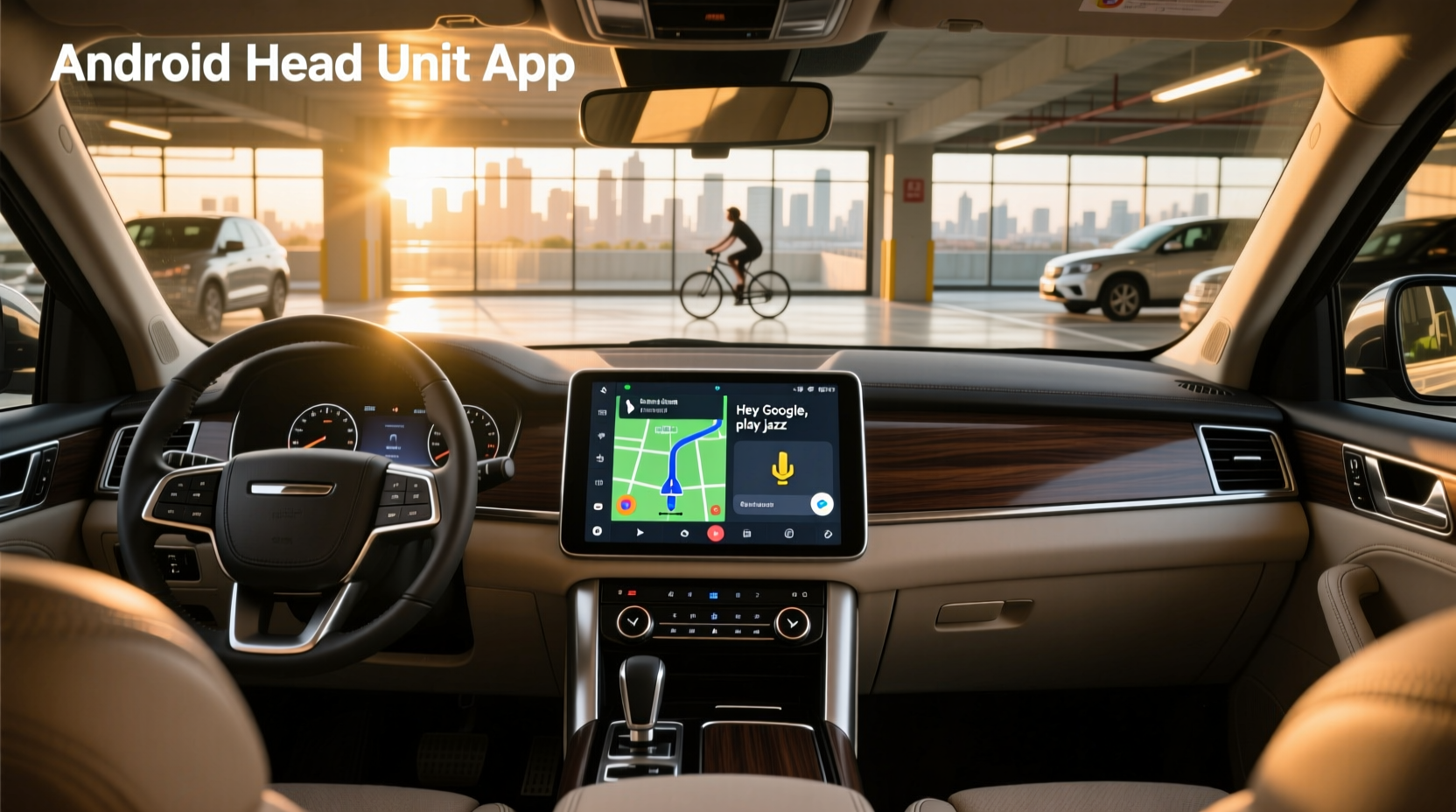
If you're searching for the best android head unit app, you're likely looking to upgrade your in-car experience with smarter navigation, better audio control, or seamless smartphone integration. The reality is that modern Android head units are full-fledged computers embedded in your dashboard—meaning the apps you install directly impact performance, safety, and usability. Choosing the right app ecosystem isn't just about entertainment; it's about functionality, stability, and long-term satisfaction. This guide breaks down everything you need to know—from core system requirements to top-performing applications, installation considerations, and hidden drawbacks many users overlook before buying.
Understanding Android Head Units and Their App Ecosystems
An Android head unit replaces your factory radio with a touchscreen running the Android operating system. Unlike basic infotainment systems, these units allow you to download and run third-party apps—just like on a smartphone. This opens up possibilities for advanced GPS navigation, video streaming, wireless connectivity, and even vehicle diagnostics. However, not all head units handle apps equally well. Performance depends heavily on hardware specs, software optimization, and whether the unit supports Google Mobile Services (GMS).
When people ask 'what is a good android head unit app?', they're often trying to solve one of several real-world problems: unreliable Bluetooth pairing, outdated maps, poor voice assistant response, or limited media options. The solution usually lies not in a single app—but in understanding how the entire system works together.
Key Factors That Affect App Performance on Android Head Units
Before diving into specific apps, it’s crucial to evaluate the head unit itself. No matter how powerful an app is, poor underlying hardware will lead to lag, crashes, or overheating.
📱 RAM and Storage (Minimum 4GB/64GB Recommended)
App responsiveness hinges on available memory. Units with less than 4GB RAM struggle when multitasking—such as playing music while navigating and receiving calls. For smooth operation with multiple background services, aim for at least 6GB RAM 1. Similarly, internal storage should be 64GB minimum if you plan to cache maps, store media, or use DVR functions.
⚡ Processor and OS Version
The CPU determines how quickly apps launch and respond. Look for units powered by Qualcomm Snapdragon chips or Rockchip RK3566/RK3588 processors—they offer better thermal management and driver support. Also check the Android version: Android 11 or higher ensures better security updates and app compatibility. Some newer models now ship with Android 13, which improves background process handling—an important factor for apps that run continuously like dashcams or parking monitors.
🌐 Connectivity Options: Wi-Fi, 4G LTE, and Hotspot Support
To use most modern apps effectively, constant internet access is essential. Built-in 4G LTE allows standalone operation without tethering to your phone. Wi-Fi 5GHz support reduces latency for over-the-air updates and streaming. If your unit lacks cellular connectivity, ensure it can reliably connect to your phone’s hotspot without dropping signal during drives.
🔌 Google Mobile Services (GMS) Certification
This is critical: not all Android head units come with official Google Play Store access. Many budget models run 'Google-free' Android, meaning you can’t install apps like Google Maps, YouTube, or Spotify directly. Instead, you must sideload APK files manually—a process that introduces security risks and update complications. Always confirm GMS certification before purchase.
| Feature | Minimum Recommendation | Ideal Specification |
|---|---|---|
| RAM | 4GB | 6–8GB |
| Internal Storage | 32GB | 64–128GB |
| OS Version | Android 10 | Android 12+ |
| Connectivity | Wi-Fi + Bluetooth 5.0 | 4G LTE + Dual-band Wi-Fi |
| Google Play Access | No (APK only) | Yes (GMS Certified) |
Top Android Head Unit Apps by Use Case
Once your hardware meets baseline standards, choosing the right apps becomes the next step. Below are the most useful categories and recommended tools based on user feedback and functional reliability.
📍 Navigation & Real-Time Traffic
Google Maps remains the gold standard for turn-by-turn directions, live traffic data, speed limit warnings, and lane guidance. It integrates smoothly with Android Auto and voice commands. Alternatives like Waze excel in community-driven alerts but consume more battery and data. For offline use, HERE WeGo offers downloadable regional maps without requiring a subscription.
🎵 Music and Audio Streaming
Spotify and Pandora provide personalized playlists and hands-free control via steering wheel buttons or voice prompts. Ensure your head unit supports high-bitrate audio decoding (e.g., FLAC, ALAC) if you care about sound quality. For audiophiles, consider Poweramp, a dedicated local music player that bypasses Android’s default mixer for cleaner output.
📞 Communication and Voice Assistants
Google Assistant enables natural language queries (“Find gas stations near me”) and smart home integration. Some units also support Bixby or Alexa, though availability varies. For messaging, AutoMate reads texts aloud and lets you reply using voice-to-text, reducing distraction while driving.
📹 Dash Cams and Parking Mode
If your head unit has rear or front camera inputs, apps like DashCam Viewer help manage recordings and review incidents. Paired with loop recording and motion detection, this turns your stereo into a surveillance tool when parked. Note: continuous recording requires a hardwired connection to avoid draining your car battery.
🔧 Vehicle Diagnostics and OBD2 Integration
With a compatible OBD2 adapter, apps such as Torque Pro display real-time engine data (RPM, coolant temp, fuel efficiency), read diagnostic trouble codes, and estimate emissions compliance. This is especially valuable for older vehicles lacking built-in health monitoring.
Common Pitfalls When Using Apps on Android Head Units
Despite their flexibility, Android-based stereos come with notable trade-offs that affect app usability.
❗ Overheating and System Crashes
Running too many apps simultaneously—especially video players or navigation tools—can cause thermal throttling or spontaneous restarts. This is common in units installed behind metal dashboards with poor ventilation. To prevent this, close unused apps regularly and disable auto-launch features in settings.
🚫 Inconsistent Software Updates
Unlike smartphones, most aftermarket head units receive infrequent firmware updates. Manufacturers may abandon support after 1–2 years, leaving devices vulnerable to bugs or incompatible with new app versions. Check manufacturer forums or Reddit communities (like r/CarAV) to assess long-term software commitment before purchasing.
🔒 Security Risks from Sideloading APKs
Units without Google Play Store force users to install apps via APK downloads. This method increases exposure to malware, especially from unverified websites. Only download APKs from trusted sources like APKMirror or direct developer pages, and verify file hashes when possible.
📉 Poor Touch Response in Cold Weather
Cheap capacitive screens often fail in sub-zero temperatures, leading to unresponsive touches or ghost inputs. Opt for units with industrial-grade touch controllers designed for automotive environments if you live in colder climates.
How to Install and Manage Apps Safely
Proper setup ensures optimal performance and minimizes future issues.
✅ Step-by-Step App Installation (With or Without Google Play)
- Connect to Wi-Fi: Use a stable network to avoid interrupted downloads.
- Open Google Play Store (if available): Sign in with your Google account and enable auto-updates.
- Sideload APKs (if no Play Store): Transfer the APK file via USB, enable 'Unknown Sources' in Settings > Security, then install manually.
- Test Each App: Launch each newly installed app to confirm functionality and permissions.
- Remove Bloatware: Uninstall preloaded apps you don’t use to free up RAM and reduce startup time.
⚙️ Optimizing System Settings for App Stability
- Disable animations in Developer Options to speed up UI transitions.
- Set navigation and music apps as 'priority' to prevent them from being killed in the background.
- Turn off unnecessary sensors (gyroscope, accelerometer) unless required by specific apps.
- Regularly clear app caches through Settings > Apps to maintain responsiveness.
Regional and Legal Considerations
Laws regarding screen usage while driving vary by country. In the U.S., FMVSS 101 restricts moving text and video on displays within the driver’s primary field of view. While Android head units are legal, using certain apps (like YouTube or Netflix) while driving violates distracted driving laws in most states. Always lock out non-essential apps while the vehicle is in motion.
In Europe, regulations under UNECE R155 emphasize cybersecurity for connected vehicle systems. Aftermarket head units without secure boot or OTA update encryption may not comply fully, though enforcement typically targets OEMs rather than consumers.
When NOT to Buy an Android Head Unit
Despite their appeal, these systems aren’t ideal for everyone. Avoid upgrading if:
- You primarily rely on Apple CarPlay—you’ll lose seamless iPhone integration unless the unit supports wireless CarPlay alongside Android Auto.
- Your car already has a modern OEM infotainment system with regular updates (e.g., Tesla, BMW iDrive, Mercedes MBUX).
- You’re unwilling to troubleshoot occasional glitches or perform manual updates.
- You park outdoors in extreme heat/cold, where screen durability and battery drain become major concerns.
Frequently Asked Questions (FAQs)
- Can I use Android Auto and native Android apps at the same time?
- Yes, many modern head units support both. You can switch between Android Auto interface and the full Android desktop environment. However, running both simultaneously may strain lower-end hardware.
- Do I need a SIM card for apps to work?
- Not always. Apps like Google Maps can function offline with pre-downloaded data. But real-time traffic, weather, and streaming require internet—either via built-in SIM or smartphone hotspot.
- Why does my Android head unit freeze when using apps?
- Freezing is usually caused by insufficient RAM, overheating, or poorly optimized software. Close unused apps, ensure proper ventilation, and update firmware if available.
- Are there free alternatives to paid navigation apps?
- Yes. Open-source options like Organic Maps and MAPS.ME offer offline routing without ads or subscriptions. They lack live traffic but are reliable for rural areas with spotty connectivity.
- Can I control climate settings through an app?
- If your head unit includes HVAC integration (often via CAN bus decoder), yes. Otherwise, you’ll need additional modules or factory-linked solutions, which may void warranties.





 浙公网安备
33010002000092号
浙公网安备
33010002000092号 浙B2-20120091-4