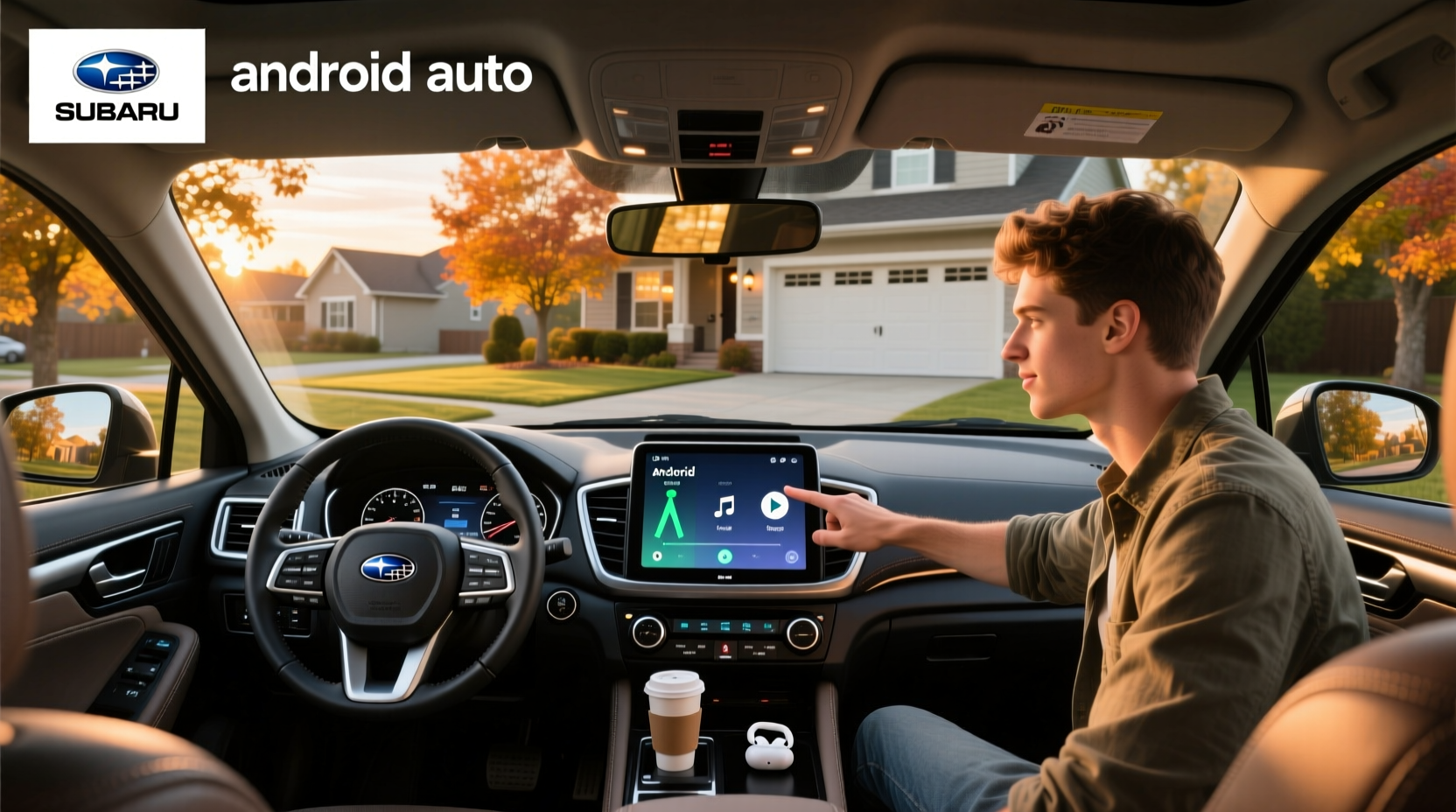
If you're searching for how to get Android Auto in your Subaru, you're not alone. Many Subaru owners want seamless smartphone integration for navigation, music, and hands-free calling—especially if their vehicle lacks factory support. The good news: adding Android Auto to a Subaru is possible across most model years, even those without built-in Starlink compatibility. Whether you drive a Legacy, Outback, Forester, or Impreza, this guide breaks down everything you need to know—from checking compatibility and choosing the right head unit to installation tips and troubleshooting connectivity issues.
Why Subaru Owners Want Android Auto
Android Auto brings your favorite apps—like Google Maps, WhatsApp, Spotify, and phone calls—directly to your car's display. It reduces distractions by offering voice control via Google Assistant and a simplified interface optimized for driving. However, not all Subaru models come with Android Auto as standard. While newer Subarus (generally 2019 and up) include it through the STARLINK infotainment system, many earlier models do not. This gap has led drivers to seek aftermarket solutions or retrofit kits to upgrade their vehicles.
Which Subaru Models Support Android Auto?
Understanding whether your Subaru supports Android Auto natively is the first step. Here’s a breakdown by model year and trim:
- 2019–Present: Most trims include Android Auto and Apple CarPlay as standard or optional features via the STARLINK Multimedia system 1.
- 2016–2018: Limited availability. Only higher trims (e.g., Touring or Limited) with the larger touchscreen may support wired Android Auto.
- 2015 and Earlier: No factory Android Auto support. Requires an aftermarket head unit or retrofit kit.
To confirm your specific vehicle, check your infotainment screen for an “Android Auto” app icon or consult your owner’s manual under “Connectivity.” You can also visit Subaru’s official website and use their vehicle configurator tool to verify multimedia specs based on VIN or trim level.
Factory vs Aftermarket: What’s the Difference?
There are two main paths to getting Android Auto in your Subaru: using the factory system (if available) or installing an aftermarket solution.
Factory-Installed Android Auto ✅
If your Subaru came with STARLINK and supports Android Auto, setup is straightforward:
- Ensure your smartphone runs Android 6.0 or higher.
- Download the Android Auto app from the Google Play Store.
- Connect your phone via USB cable to the dashboard port.
- Follow the on-screen prompts to enable permissions.
Once connected, the system should launch automatically each time you plug in. Some 2020+ models also support wireless Android Auto, eliminating the need for cables.
Aftermarket Head Units 🔧
For older Subarus without native support, replacing the factory radio with an aftermarket Android-based head unit is the most effective solution. These units run full versions of Android (often Android 10–14), allowing direct installation of Android Auto, along with other apps like YouTube, Netflix (for passenger use), and navigation tools.
Popular brands include Pioneer, Kenwood, and generic OEM-style units from manufacturers like Joying or Idoing—all compatible with various Subaru models when paired with the correct harness and mounting kit.
| Model Year Range | Common Aftermarket Fit | Required Accessories | Steering Wheel Control Compatible? |
|---|---|---|---|
| 2005–2009 Legacy/Outback | DIN-sized units | Mounting kit, wiring harness, CAN bus decoder | Yes (with module) |
| 2010–2014 Legacy/Outback | Double-DIN touchscreens | Interface adapter, backup camera wiring | Yes |
| 2015–2018 Forester/Crosstrek | OEM-fit 9-inch screens | Plug-and-play harness, GPS antenna | Yes |
| 2019+ (Non-CarPlay models) | Custom dash kits required | Advanced coding tools may be needed | Limited |
Key Features to Look for in an Aftermarket Unit
When shopping for a replacement stereo, consider these factors to ensure compatibility and usability:
- Operating System: Units running Android 10 or later offer better app compatibility and security updates.
- Wireless Connectivity: Look for Bluetooth 5.0+, dual-band Wi-Fi, and support for wireless Android Auto (if desired).
- Screen Quality: IPS panels provide wider viewing angles and better sunlight readability.
- RAM & Storage: At least 4GB RAM and 64GB internal storage ensures smooth multitasking.
- Integration Capabilities: Ensure the unit supports steering wheel controls, factory amplifiers (e.g., Harman Kardon), and backup cameras.
- GPS & DSP: Built-in GPS allows standalone navigation; Digital Signal Processing (DSP) enhances audio quality.
Installation Process Overview
Installing an Android Auto-compatible head unit involves several steps. While some users choose DIY, professional installation is recommended for full functionality and warranty protection.
Step 1: Remove Factory Radio 🧰
Use trim removal tools to gently pry off the dashboard bezel around the radio. Disconnect the wiring harness, antenna cable, and any auxiliary connections (e.g., to a factory amp or satellite radio). Take note of connector types before disconnecting.
Step 2: Connect Adapter Harness 🔗
Most Subarus require a vehicle-specific wiring adapter (e.g., Metra or PAC) to match the new unit’s wiring. Match color-coded wires carefully and use crimp connectors or soldering for secure joints. Avoid twisting wires together.
Step 3: Install Mounting Kit & New Unit
Depending on your model, you may need a dash kit to fill gaps between the new double-DIN unit and the original opening. Secure the unit with screws and test fit before finalizing connections.
Step 4: Restore Vehicle Functions ⚙️
Reconnect factory systems such as:
- Backup camera (via RCA input)
- Steering wheel audio controls (requires a separate SWC module)
- Factory amplifier (if equipped)
- Climate control display (on certain models)
Step 5: Pair Phone & Test Android Auto
Power on the new head unit, connect your Android phone via USB or Bluetooth, and open the Android Auto app. Follow setup prompts. If using wireless Android Auto, ensure both devices are on the same Wi-Fi network during pairing.
Common Issues and Troubleshooting
Even with proper installation, users sometimes encounter problems. Here are frequent issues and fixes:
❌ Android Auto Won’t Launch
- Cause: USB port not providing enough power or data transfer.
- Solution: Try a high-quality USB cable and ensure the port is set to “File Transfer” mode on your phone.
❌ Steering Wheel Controls Not Working
- Cause: Missing or misconfigured SWC module.
- Solution: Verify that the module is installed and programmed correctly. Some units require firmware updates to recognize button inputs.
❌ Backup Camera Displays in Reverse Only
- Cause: Incorrect trigger wire connection.
- Solution: Check that the reverse light wire (usually yellow/white) is tapped into the correct circuit.
❌ Poor Touchscreen Responsiveness
- Cause: Low-quality screen or outdated firmware.
- Solution: Update the unit’s software or recalibrate the touchscreen in settings.
Retrofit Kits vs Full Head Unit Replacement
An alternative to replacing the entire head unit is using a retrofit kit, which adds Android Auto functionality while retaining the factory radio appearance.
These kits typically include:
- A small computer board that interfaces with the factory system
- A wireless dongle for screen mirroring
- Software that enables Android Auto over HDMI or Miracast
Brands like Carlinkit and AAPO offer plug-and-play adapters for select Subaru models (mainly 2015–2018). Advantages include preserving OEM aesthetics and retaining factory features like climate display integration. However, performance can vary, and some kits require periodic reboots or lack full Google Assistant support.
Regional Considerations and Software Updates
Availability of Android Auto—and supported languages, maps, and apps—can vary by region. For example, Canadian Subarus may have slightly different STARLINK configurations than U.S. models. Always verify regional compatibility before purchasing hardware.
Additionally, software updates matter. Factory systems receive periodic OTA (over-the-air) updates from Subaru, but aftermarket units depend on manufacturer-provided firmware. Check product pages or forums to see how frequently a given model receives updates.
Cost Comparison: What to Expect
Here’s a general idea of costs involved in adding Android Auto to your Subaru:
| Solution Type | Average Cost (USD) | Labor Included? | Warranty Period |
|---|---|---|---|
| Aftermarket Head Unit Only | $250–$500 | No | 1–2 years |
| Professional Installation | $100–$200 | Yes | Varies |
| Retrofit Kit (DIY) | $80–$150 | Yes | 6 months–1 year |
| Dealership Upgrade | $800+ | Yes | Full vehicle warranty |
While dealership upgrades are reliable, they’re often significantly more expensive. Aftermarket solutions offer better value but require research to avoid compatibility pitfalls.
Future-Proofing Your Investment
Technology evolves quickly. When selecting a head unit or retrofit solution, ask:
- Does it support over-the-air updates?
- Is there active developer support for bug fixes?
- Can it handle future versions of Android Auto?
- Are replacement parts or accessories readily available?
Units with modular designs and community-backed firmware (like those used in open-source car projects) tend to remain functional longer.
Final Recommendations
If your Subaru didn’t come with Android Auto, don’t assume you’re stuck without it. Depending on your model year and budget, you have viable options:
- For 2019+ models: Use factory Android Auto via USB or wireless connection.
- For 2015–2018 models: Consider a retrofit kit for minimal modification or a full head unit swap for maximum features.
- For 2014 and older: An aftermarket double-DIN unit offers the best experience, especially with touchscreen and GPS integration.
Before buying, confirm compatibility with your exact make, model, and trim. Read user reviews focusing on real-world reliability—not just initial setup success. And if you’re unsure about installation, consult a certified car audio technician.
Frequently Asked Questions
- Can I install Android Auto in a 2012 Subaru Legacy?
- Yes, but not natively. You’ll need to replace the factory head unit with an aftermarket Android-powered stereo or use a retrofit kit that enables screen mirroring.
- Does Subaru charge for Android Auto updates?
- No. If your vehicle supports Android Auto through STARLINK, updates are free and delivered over-the-air or via dealership service.
- Is wireless Android Auto available in any Subaru?
- Yes, select 2020 and newer Subaru models with the STARLINK 11.6-inch Multimedia Plus system support wireless Android Auto and Apple CarPlay.
- Will adding an aftermarket head unit void my Subaru warranty?
- Generally, no—if the installation doesn’t cause damage. Under the Magnuson-Moss Warranty Act, manufacturers cannot void warranties solely due to aftermarket parts unless they directly cause the issue.
- How do I know if my Subaru has the necessary USB port for Android Auto?
- Look for a USB port labeled with a smartphone icon or check your owner’s manual. Ports supporting data transfer (not just charging) are required. Test by connecting your phone and seeing if a connection prompt appears.





 浙公网安备
33010002000092号
浙公网安备
33010002000092号 浙B2-20120091-4