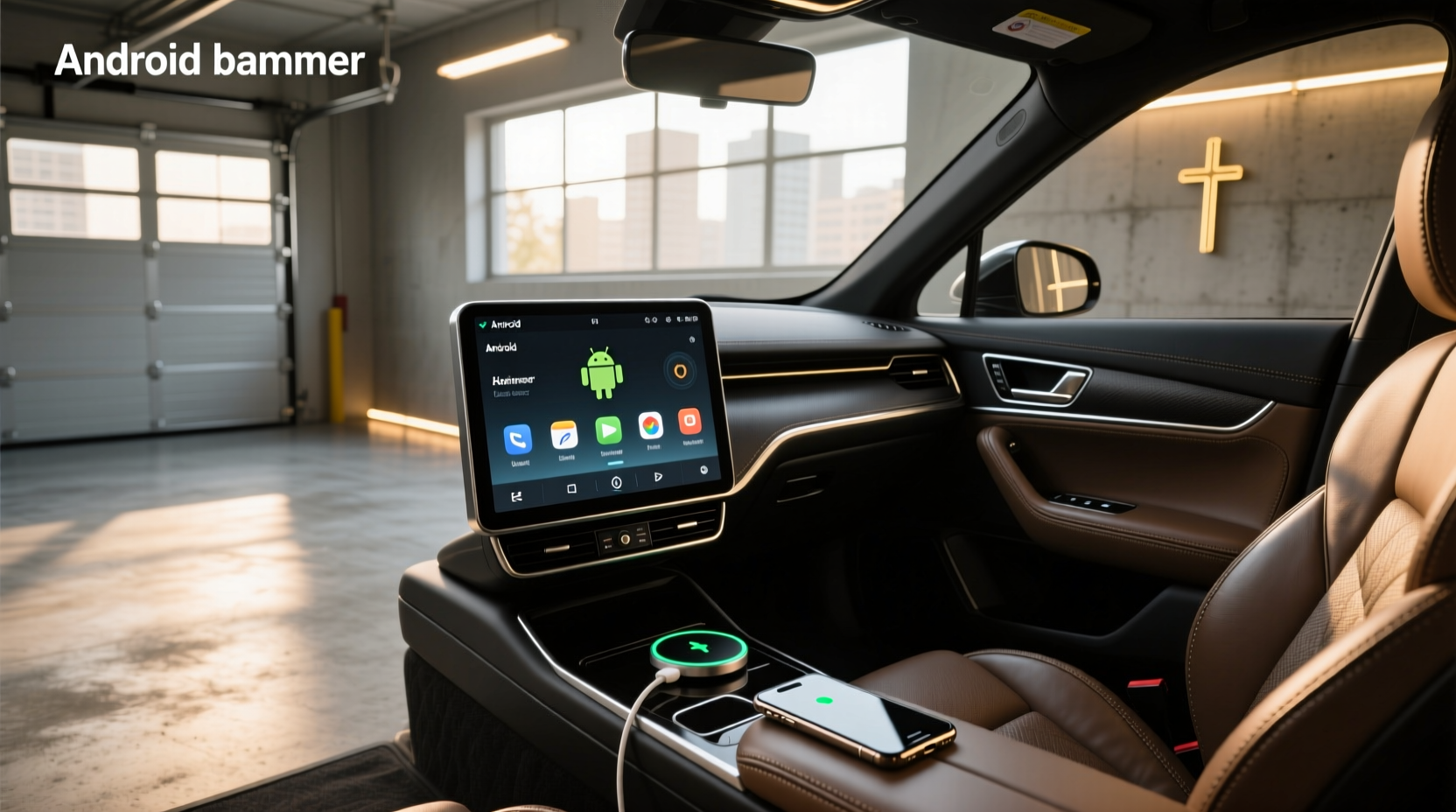
When upgrading your vehicle's infotainment system, one of the most important yet overlooked features is the Android head unit launcher. Unlike factory-installed systems that limit customization, aftermarket Android head units allow full control over the interface — starting with the launcher. A well-designed launcher determines how easily you can access navigation, music, phone functions, and third-party apps while driving. This guide explains exactly what an Android head unit launcher is, why it matters for daily usability, and how to evaluate different models based on performance, compatibility, and user experience.
Understanding the Role of a Launcher in Android Head Units
The term launcher refers to the home screen interface that manages app icons, widgets, gestures, and overall navigation within an Android operating system. In smartphones, users often customize their launchers for aesthetics or efficiency (e.g., Nova Launcher, Microsoft Launcher). Similarly, in an Android car stereo head unit, the launcher controls how drivers interact with the touchscreen dashboard.
Most factory or basic aftermarket units run proprietary software without true Android flexibility. However, modern double din Android head units operate on full versions of Android (often Android 10–13), enabling installation of any compatible app from the Google Play Store or APK files. Without a responsive and intuitive launcher, however, this capability becomes frustrating rather than empowering.
A poor default launcher may cause slow response times, cluttered menus, or awkward touch targeting — all dangerous distractions while driving. Therefore, understanding how launchers function and which ones perform best under real-world conditions is essential before purchasing or configuring a new head unit.
Common Types of Launchers Used in Android Head Units
There are three primary categories of launchers found across Android-based car stereos:
1. Stock OEM Launchers (Factory Default)
Many budget and mid-tier head units come with a preinstalled launcher developed by the manufacturer. These are typically designed to mimic popular OEM interfaces like Toyota Entune or Honda Link but lack deep customization options. While they may include large buttons optimized for driving, they often suffer from:
- Limited widget support
- Inability to hide unused apps
- Poor memory management causing lag
- No gesture navigation
These limitations reduce long-term satisfaction, especially if you plan to install additional apps like Waze, Spotify, or dashcam viewers.
2. Custom Skinned Launchers
Some higher-end brands such as Eonon, Joying, or XTRONS use modified Android skins that act as semi-custom launchers. These offer improved graphics, themed UIs, and sometimes split-screen capabilities. They may also integrate vehicle-specific data (like AC control or backup camera triggers) directly into the home screen.
While more functional than stock launchers, these still restrict deeper modifications. For example, you might not be able to change icon packs or enable dark mode system-wide. Additionally, updates are infrequent, leaving security vulnerabilities unpatched over time.
3. Third-Party Android Launchers
This category offers the greatest flexibility. Users can download alternative launchers from the Google Play Store or sideload APKs. Popular choices include:
- Nova Launcher: Known for speed, minimalism, and extensive customization including grid size, animation effects, and folder organization.
- Smart Launcher Pro: Uses AI to group apps automatically and supports voice commands and gesture shortcuts.
- KISS Launcher: Ultra-lightweight, ideal for older or lower-RAM head units; activates via swipe-up gesture instead of showing persistent icons.
- Microsoft Launcher: Syncs with Windows devices and allows timeline integration, useful for business travelers.
Using a third-party launcher requires some technical familiarity but significantly enhances usability and personalization.
Key Features to Look for in a Head Unit Launcher
Not all launchers perform equally well on automotive hardware. Below are critical evaluation criteria when selecting or installing a launcher for your Android auto head unit.
Touch Responsiveness and Target Size ⚡
Driving demands quick, accurate input. The launcher should feature generously sized tap targets (minimum 48x48dp) and haptic feedback where supported. Avoid launchers that crowd too many icons on screen or require precise finger placement.
RAM and CPU Efficiency 📊
Most Android head units have limited processing power compared to smartphones. A bloated launcher can consume excessive RAM, leading to app reloads and stuttering. Lightweight options like KISS or Nova Launcher (in 'default' mode) are better suited for units with only 2–4GB RAM.
Auto-Hide Navigation Bars ✅
Full-screen immersion improves visibility and reduces glare. Some launchers allow hiding the status bar and soft keys until swiped, maximizing usable display area — particularly valuable on 7" or 9" screens.
Voice Command Integration 🌐
If your unit supports Google Assistant or other voice services, ensure the launcher doesn’t interfere with hotword detection ('Hey Google'). Test whether saying the command from any app returns you to the home screen reliably.
Dark Mode and Night Themes 🌍
Bright white interfaces at night impair vision and increase eye strain. A good launcher should support automatic theme switching based on time or ambient light sensor input (if available).
Widget Support and Real-Time Data 📍
Widgets provide glanceable information without opening apps. Useful examples include weather forecasts, calendar events, parking timers, or music player controls. Ensure the launcher allows resizing and positioning widgets freely.
How Hardware Impacts Launcher Performance
Your choice of launcher is only as effective as the underlying hardware. Even the smoothest software will struggle on underpowered equipment. Consider these specifications when evaluating compatibility:
| Hardware Component | Minimum Recommendation | Ideal Specification | Impact on Launcher |
|---|---|---|---|
| CPU (Processor) | Dual-core ARM Cortex-A53 | Octa-core Qualcomm Snapdragon 665+ | Faster app launches, smoother animations |
| RAM | 2 GB | 6 GB | Prevents reloading apps after switching |
| Internal Storage (ROM) | 16 GB | 64 GB | Allows multiple launchers and apps to coexist |
| Operating System | Android 10 | Android 13+ with OTA update support | Better security, broader app compatibility |
| Touchscreen Type | Resistive | Capacitive Multi-Touch | More responsive to gestures and pinch-zoom |
Units with less than 4GB RAM may crash or freeze when running advanced launchers. Always check community forums or video reviews to see real-world performance benchmarks.
Installation and Configuration Tips for Optimal Experience
Once you’ve selected a suitable head unit and launcher, proper setup ensures lasting usability. Follow these steps:
Step 1: Update the OS and Clear Bloatware 🔧
Before installing a new launcher, remove unnecessary preloaded apps that consume background resources. Use a tool like SD Maid or manually disable them via Settings > Apps. Then, ensure the system is updated to the latest firmware version.
Step 2: Install Your Preferred Launcher via Safe Source 🔗
Download the APK from the official developer website or trusted repository like F-Droid. Avoid third-party APK sites that bundle malware. After installation, set it as the default launcher when prompted.
Step 3: Configure Driving-Friendly Layouts ✨
Place frequently used apps (Google Maps, Phone, Music) within easy thumb reach. Disable live wallpapers and heavy animations. Enable one-handed mode if available.
Step 4: Set Up Auto-Launch Rules ⏱️
Use built-in automation tools or apps like Tasker to automatically open navigation upon ignition or switch to Bluetooth calling interface when a device connects.
Step 5: Test Under Real Conditions 🚗
Drive during both day and night to assess readability, responsiveness, and distraction level. Adjust font sizes and color schemes accordingly.
Misconceptions About Android Head Unit Launchers
Several myths persist among consumers considering upgrades. Clarifying these helps avoid disappointment:
Misconception 1: "All Android Head Units Have Google Play" ❗
Not all units ship with Google Mobile Services (GMS) certified. Some use forked versions of Android without access to the Play Store. Without GMS, downloading popular launchers becomes difficult unless sideloading is enabled.
Misconception 2: "A Better Launcher Fixes Poor Hardware" 🔍
No software can fully compensate for inadequate RAM or outdated processors. A sleek launcher on a low-end unit may look good initially but degrade quickly as cache fills up.
Misconception 3: "Custom Launchers Drain Battery Faster" 🔋
In reality, many third-party launchers are more efficient than bloated stock interfaces. Power consumption depends more on screen brightness and background sync settings than the launcher itself.
Regional Differences and Legal Considerations
While Android head units are widely available globally, regulations affect usability. For example:
- In the EU, GDPR-compliant units must allow data deletion and restrict unauthorized tracking.
- In the U.S., NHTSA guidelines discourage complex interactions while driving; some states ban video playback on front displays while moving.
- In Australia, certain frequencies used by Wi-Fi or 4G LTE modules may conflict with local telecom standards.
Always verify that your chosen head unit and launcher comply with local laws regarding screen content and driver distraction.
Future Trends: AI-Powered and Context-Aware Launchers
New developments point toward smarter, adaptive interfaces. At CES 2025, several manufacturers demonstrated AI-enhanced launchers that:
- Anticipate destination based on time and calendar
- Adjust layout depending on traffic conditions
- Integrate with smart home devices en route
- Support natural language queries beyond simple voice commands
These systems rely on powerful chipsets like Qualcomm SA8195P and continuous cloud connectivity. As 5G becomes standard in vehicles, expect launchers to evolve from static menus into dynamic, predictive hubs.
Conclusion: Prioritize Usability Over Flashiness
Choosing the right Android head unit launcher isn't about flashy visuals — it's about creating a safe, efficient, and personalized driving environment. Start by assessing your current pain points: Do you struggle to find apps? Is the interface sluggish? Does it distract you at night?
Then, match your needs with appropriate hardware and software solutions. Remember: even the most advanced launcher fails if the underlying system lacks sufficient RAM or touch precision. Focus on reliability, responsiveness, and ease of access. With the right configuration, your Android head unit can become a seamless extension of your digital life — not another source of frustration behind the wheel.
Frequently Asked Questions
- Can I install any Android launcher on my car stereo?
- Most units allow third-party launchers if they run full Android and permit unknown sources. However, compatibility varies by chipset and OS version. Always test in safe mode first.
- Why does my launcher keep crashing?
- Frequent crashes usually stem from insufficient RAM, outdated firmware, or incompatible APK versions. Try clearing cache or switching to a lighter launcher like KISS.
- Do custom launchers affect warranty?
- Generally no — modifying software doesn't void hardware warranties unless tampering is detected during service. Check manufacturer policy before making changes.
- Is it safe to use gesture navigation while driving?
- Gesture controls reduce reach distance but require visual attention. Stick to large, predictable motions and avoid complex swipes that demand focus.
- How do I revert to the default launcher?
- Go to Settings > Apps > Default Apps > Home App and select the original interface. If unavailable, uninstall the third-party launcher.





 浙公网安备
33010002000092号
浙公网安备
33010002000092号 浙B2-20120091-4